
Purchasing the RealSimGear G500 Software:
The RealSimGear G500 software is sold and downloaded from the X-Aviation.com store. A download link will be provided with your order details at X-Aviation.com. After downloading the RealSimGear G500 software follow the onscreen prompts for the X-Aviation Installer to install the RealSimGear G500 Avionics.

What is included with the RealSimGear G500 Software
The RealSimGear G500 avionics package will include the following:
- Accurate avionics with detailed menus and configurability.
- An integration into default Cessna 172 is included, ready to fly, with the download!
- Already integrated into the TorqueSim BN-2B Islander and BN-2T Turbine Islander - and more integrations are coming!
- Detailed map views showing the flight plan, terrain, traffic, airspace, airports, airways, highways, cities, and more!
- Waypoint information page, able to retrieve detailed information about airports, VORs, and more, right from the G500!
- Integration with TDS Simulations GTNXi avionics or RealityXP avionics for even more accurate behavior!
- Helicopter configuration, with flipped displays for right-sided mounting.
- Support for operation in X-Plane 12 and X-Plane 11.
Setting up the G500 Avionics in X-Plane with the RealSimGear G500 Display
Requirements:
-
You will need to have your RealSimGear G500 display connected to your computer by plugging in the included USB Type A to Type B cable.
- You will need to provide a display connection from your computer to the RealSimGear G500 using and HDMI cable (not included with the device). You can use an HDMI to HDMI cable or a DisplayPort to HDMI cable. The connection type will depend on the available ports on your GPU or graphics adapter.
- Power for the device is provided by using the included 12 volt DC adapter that came in the box with the G500.
You will also need to have installed the latest version of the RealSimGear Plugin for X-Plane. You can download the plugin from the image link below:

Configuring the G500 display in Windows:
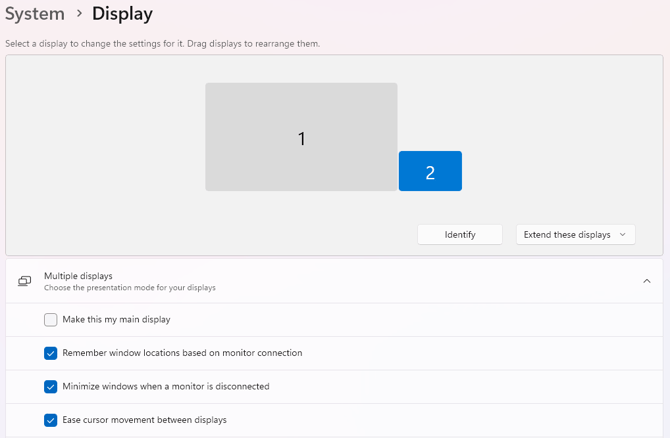
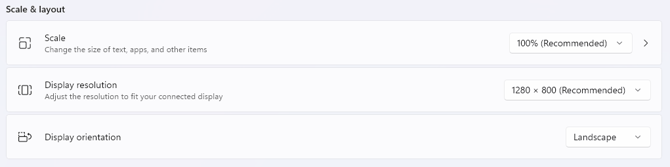
You will need to configure the G500 as a secondary display on your computer. The images below will point out the recommended settings for the display. RealSimGear recommends placing the G500 to the right of the main display in the Windows Display Configuration.
Screen Position
Screen Resolution and Layout
Disable Windows Taskbar on secondary displays:
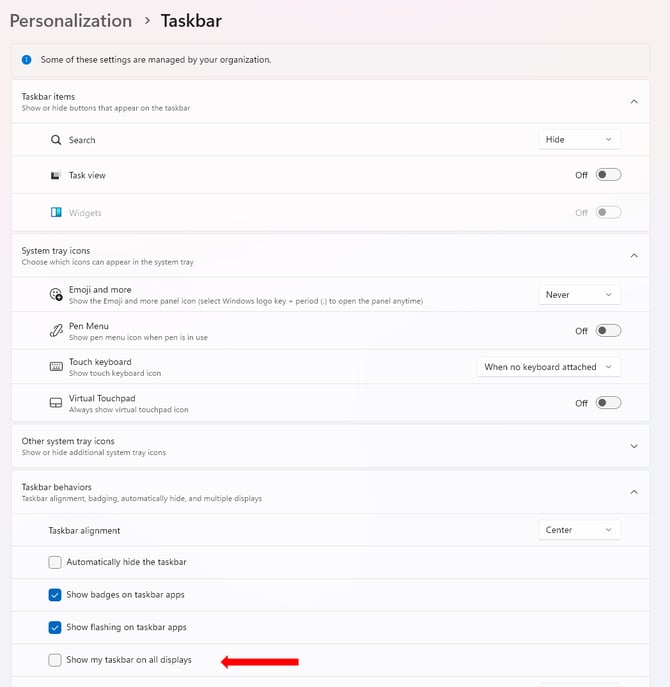
You will also need to disable the Windows Taskbar from and display that is not the main monitor in Windows.
To do this:
-
Right-click the Windows Taskbar on the main monitor.
- Click on "Taskbar settings"
- Expand "Taskbar behaviors"
- Uncheck the option "Show taskbar on all displays"
Configuring the G500 Display in X-Plane:
With the G500 display connected and configured in Windows, we will now need to finish the final steps in X-Plane.
-
Start X-Plane (for this example, we are using X-Plane 12. The same steps can be used for X-Plane 11).
- Go to "Settings"
- Go to "Graphics"
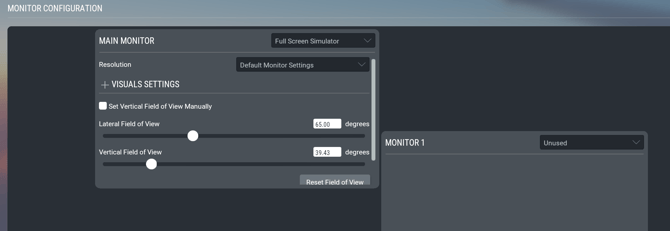
At the bottom of the Graphics settings menu in X-Plane you will see the monitor configuration. You should should see the RealSimGear G500, presently set to Unused.
-
Click on the dropdown menu that states "Unused".
-
From the options list, select "2D Panel Only". The G500 should switch from displaying your desktop image, to displaying a black display.
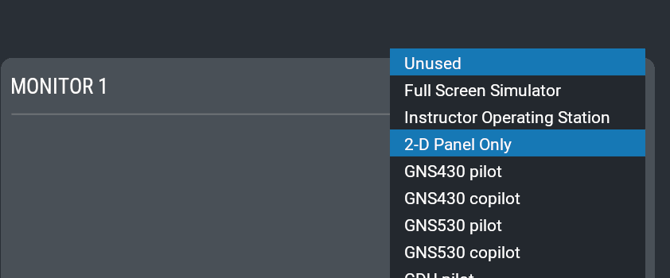
- With this option set, you can click Done from the settings menu and proceed to the next step.
Configuring the G500 Avionics Pop Out in X-Plane:
For the purposes of this guide, we will be using the custom configured Cessna 172 Skyhawk that is included with the G500 software. The Cessna Skyhawk G500 includes a 3D representation of the G500 in the panel of the Skyhawk and should automatically populate the RealSimGear G500 display with the avionics once loaded into a flight.
-
From the Flight Configuration screen select the "Cessna Skyhawk (G500)" aircraft from the aircraft menu.
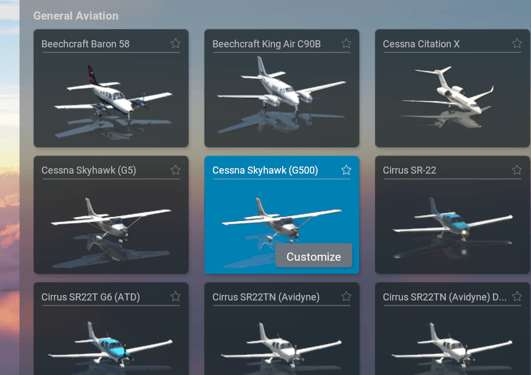
Once you have selected your flight configuration and clicked "Start Flight", X-Plane will load into the aircraft.
The RealSimGear G500 Avionics, in combination with the RealSimGear plugin, will automatically place the G500 avionics on the RealSimGear G500 display. The process is completely controlled by the G500 Avionics plugin.
-
When the Cessna Skyhawk (G500) loads into the simulation, you should see the G500 state "This aircraft has no 2D panel" momentarily as the plugin loads followed by the G500 avionics appearing on the RealSimGear G500 Display:
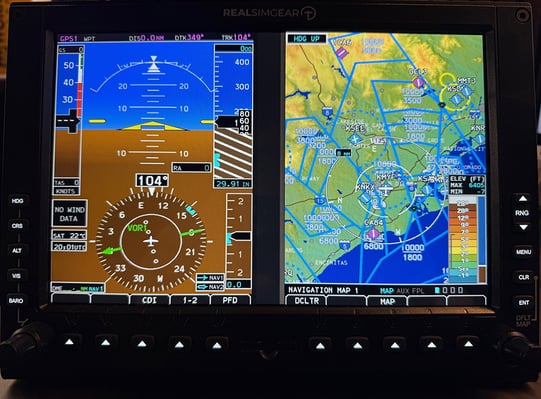
In the event that the buttons and knobs on your G500 are not controlling the G500 avionics, you will need to check that your G500 is set to the proper mode in the RealSimGear plugin.
- Access the RealSimGear "Connected Hardware" window from the RealSimGear plugin menu. You can find this in the the X-Plane "Plugins" sub-menu from the menu bar at the top of the main screen:
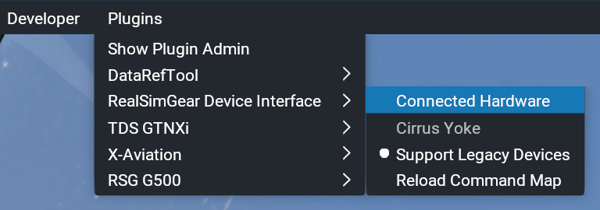
- Make sure your G500 is set to "PRI" (Primary) in the Connected Hardware window:

These step should have you up an running with the RealSimGear G500 Avionics in a few minutes. The next section of this guide will cover installing the G500 Avionics into your favorite aircraft.
Installing the G500 into other aircraft in X-Plane:
The RealSimGear G500 Avionics includes an installer that will allow you to place a 2D variant of the G500 in any aircraft for X-Plane 11 or X-Plane 12. The 2D variant will work directly with your RealSimGear G500 Display hardware, when correctly configured. This installer will not install a 3D version into your aircraft.
The installation into another aircraft is quite simple:
-
Navigate to your X-Plane installation folder. In this example we are using X-Plane 12 however, the process is the same for X-Plane 11.
-
You will see a new folder (G500 Aircraft Installer) located in your X-Plane install folder:

-
Open the Aircraft installer folder and double-click the G500-windows-x64- installer.exe to run the app.

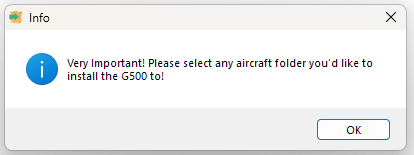
- Click OK on this window to proceed with the installation:
-
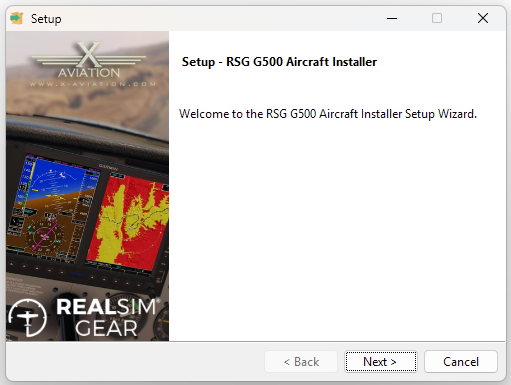
Click Next to proceed.
-
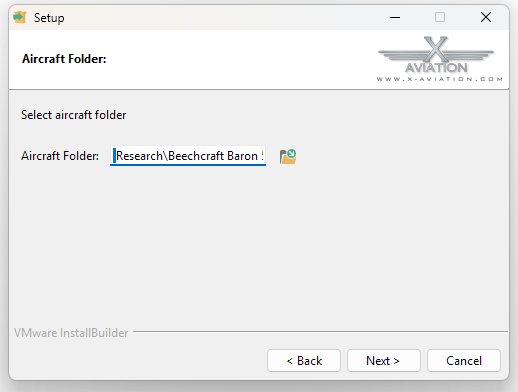
Click the folder icon to advance to the Aircraft Folder selection.
-
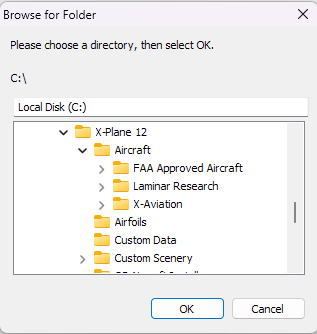
Follow the prompts to the target aircraft folder. The target aircraft is the aircraft you wish to use the G500 avionics with.
-
In this example we will install to the default Beechcraft Baron 58:
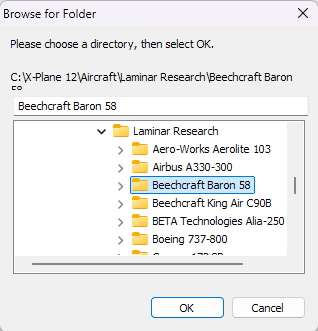
Note: The G500 is a universal instrument, you can install it to any aircraft you wish.
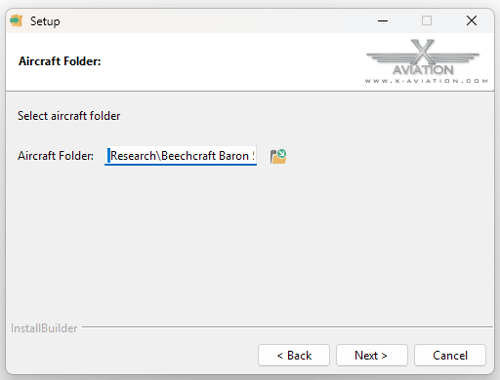
- Once the target folder is selected click Next.
-
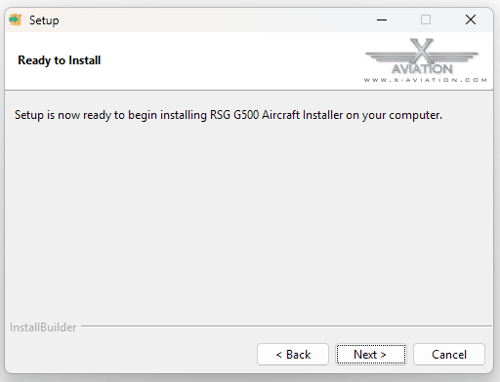
Click Next when the installer states: "Ready to Install".
- The installer will run and let you know when it is complete.
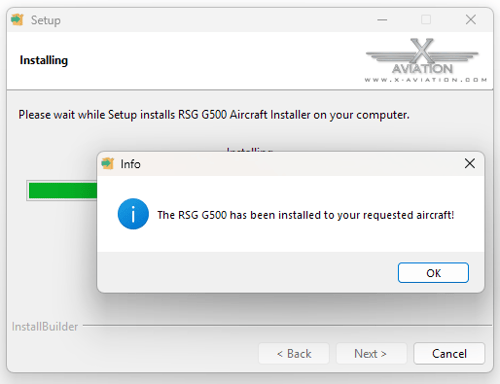
- Click OK to exit the installer.
With the installation completed, you can now start X-Plane and check the configuration.
Checking your custom configured aircraft in X-Plane:
To check that the G500 is installed to your favorite aircraft in X-Plane, start X-Plane and configure a flight.
-
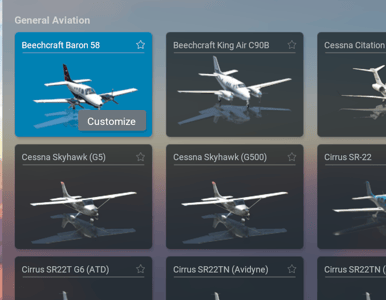
Installing the G500 to any aircraft in X-Plane will not append the " (G500) " to the aircraft description as it does with the Cessna Skyhawk that is included with the G500 avionics package.
In our example aircraft (Beechcraft Baron 58) you will see the title of the aircraft is unchanged on the aircraft selection menu:
-
Once have configured your flight, click Start Flight.
- When you have loaded into the simulation, you should see the G500 state "This aircraft has no 2D panel" momentarily as the plugin loads followed by the G500 avionics appearing on the RealSimGear G500 Display.