
Purchasing the RealSimGear G5 Software:
The RealSimGear G5 software is sold and downloaded from the X-Aviation.com store. A download link will be provided with your order details at X-Aviation.com. After downloading the RealSimGear G5 software follow the onscreen prompts for the X-Aviation Installer to install the RealSimGear G5 Avionics.

What is included with the RealSimGear G5 Software
The RealSimGear G5 avionics package will include the following:
- Exclusively interfaces with the RealSimGear G5 desktop hardware in X-Plane 11 or X-Plane 12.
- Can be ran with any aircraft in pop-out mode, or in the 3D cockpit when an aircraft developer includes the option for it.
- The default X-Plane Cessna 172 is included with the G5 mod ready to fly.
- A great set of instruments to assist in your instrument scan and assist with safer flight,
Setting up the RealSimGear G5 Devices
Begin by unpackaging your RealSimGear G5.
Each RealSimGear G5 Device will include:
- 1x USB Type A to Type B cable
- 1x 12 volt 2.0 amp DC Power Supply (North American Plug Type)
- 1x Package of device mounting screws
Not included but required:
- 1x HDMI Cable (length and connection types will vary depending on your installation)
- 1x USB3.0 to Dual HDMI Adapter (to be used if you do not have enough HDMI ports on your PC to support the connections of your G5 devices.
- 1x Desktop Stand for dual G5 displays
Mounting the G5
Each RealSimGear G5 will include 3x self tapping screws to install the G5 into a RealSimGear stand or custom panel of your choice. Your custom mounting solution should be no thicker than 3.1mm
If attaching to a RealSimGear Desktop Stand, mount Each G5 using the included screws.

Note: The stand pictured above is the RealSimGear Dual G5 Desktop Stand. The attachment of the G5 device is exact to any RealSimGear G5 desktop stand or avionics panels.
Install the RealSimGear Plugin for X-Plane
Before you plug in your RealSimGear G5 devices, please ensure that you have downloaded and installed the latest version of the RealSimGear Plugin for X-Plane. The image below will direct you to the RealSimGear Downloads Center for X-Plane:

Setting up the RealSimGear G5 devices in Windows
You will need to configure the G5's as an additional display on your computer. The images below will point out the recommended settings for the display. RealSimGear recommends placing the G5's to the right of the main display in the Windows Display Configuration.
Screen Position
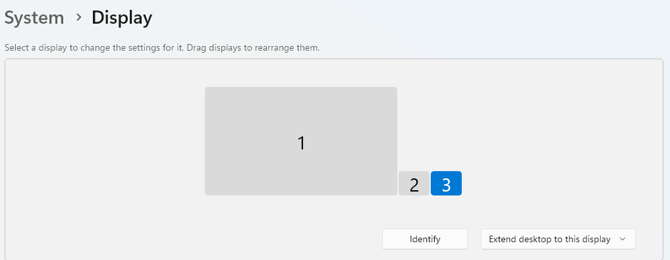
For Dual G5 Displays:
-
RealSimGear recommends the PFD (top G5) being placed before the HSI (bottom) G5 display in the Windows Display configuration. In the image above the PFD is Display 2, the HSI is Display 3.
-
You may also stack the displays vertically as long as the display number for the PFD is on top. You can press "Identify" in the Windows Display Settings menu to show the display number on the screen of the G5.
Screen Resolution
-
The native resolution of the RealSimGear G5 is 640x480 @60Hz and should be set in Landscape orientation.
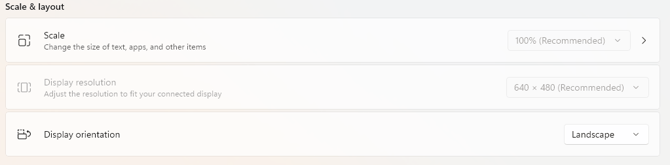
Note: In most cases the resolution for the G5 displays will be locked to the native resolution like the image above.
Depending on the year of manufacture, some RealSimGear G5 displays have a native resolution of 1024x768 @60Hz. While these devices are not common, if your "Recommended" resolution in Windows Display properties is 1024x768, please use that resolution.
Disable Windows Taskbar on secondary displays
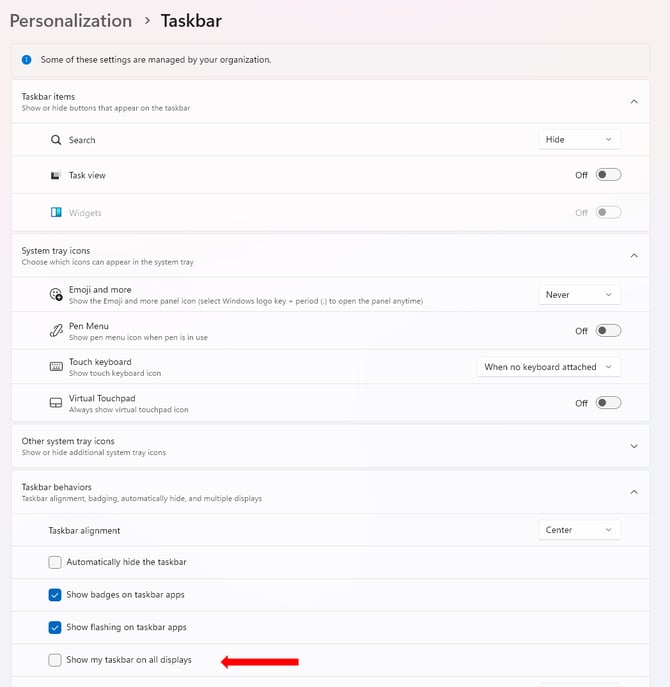
You will also need to disable the Windows Taskbar from and display that is not the main monitor in Windows.
To do this:
-
Right-click the Windows Taskbar on the main monitor.
- Click on "Taskbar settings"
- Expand "Taskbar behaviors"
- Uncheck the option "Show taskbar on all displays"
Configuring the G5 Display in X-Plane
With the G5 displays connected and configured in Windows, we will now need to finish the final steps in X-Plane.
-
Start X-Plane (for this example, we are using X-Plane 12. The same steps can be used for X-Plane 11).
- Go to "Settings"
- Go to "Graphics"
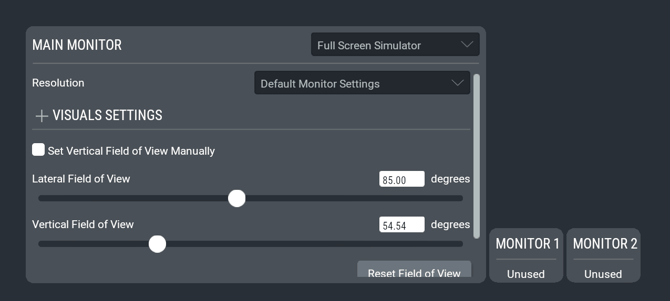
At the bottom of the Graphics settings menu in X-Plane you will see the monitor configuration. You should should see the RealSimGear G5, presently set to Unused.
-
Click on the dropdown menu that states "Unused".
-
From the options list, select "2D Panel Only". The G5 should switch from displaying your desktop image, to displaying a black display.
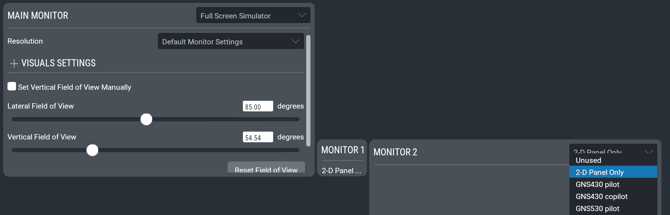
- With this option set, you can click Done from the settings menu and proceed to the next step.
Configuring the G5 Avionics Pop Out in X-Plane
For the purposes of this guide, we will be using the custom configured Cessna 172 Skyhawk that is included with the G5 software. The Cessna Skyhawk G5 includes a 3D representation of two G5's in the panel of the Skyhawk and should automatically populate the RealSimGear G5 displays with the avionics once loaded into a flight.
-
From the Flight Configuration screen select the "Cessna Skyhawk (G5)" aircraft from the aircraft menu.
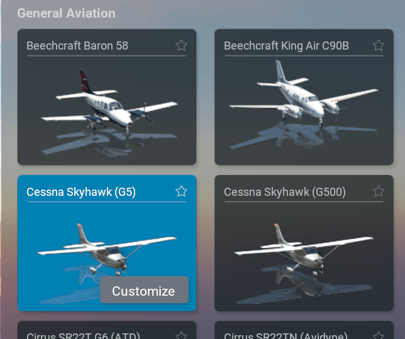
Once you have selected your flight configuration and clicked "Start Flight", X-Plane will load into the aircraft.
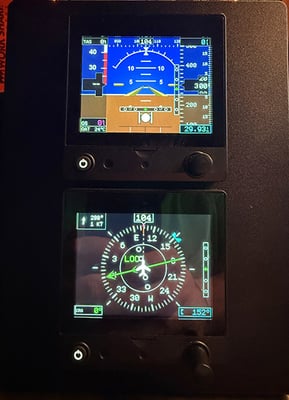
The RealSimGear G5 Avionics, in combination with the RealSimGear plugin, will automatically place the G5 avionics on the RealSimGear G5 displays. The process is completely controlled by the G5 Avionics plugin.
-
When the Cessna Skyhawk (G5) loads into the simulation, you should see the G5 state "This aircraft has no 2D panel" momentarily as the plugin loads followed by the G5 avionics appearing on the RealSimGear G5 displays:
Correcting swapped G5 Displays:
In some cases your G5 avionics will automatically appear with the HSI on top and the PFD on the bottom:
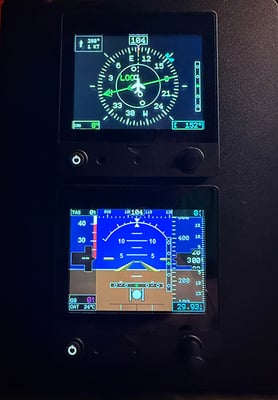
To correct this we can used the G5 Plugin controls:
-
Move your mouse to the top of your main display to show the X-Plane menu ribbon.
- Go to: Plugins > RSG G5 > G5 Swap Bezel-less Popups
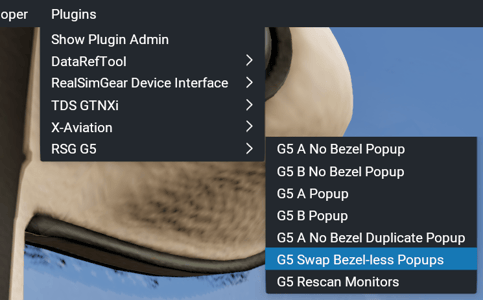
Applying the command shown above will swap your G5 pop outs.
Adjusting the knob controls with the RealSimGear plugin:
In some cases, the operation of the knob on the RealSimGear G5 may control the second G5 display in your configuration. This can be easily corrected in the RealSimGear Connected Hardware window:
- Move your mouse to the top of your main display to show the X-Plane menu ribbon.
- Go to: Plugins > RealSimGear Device Interface > Connected Hardware
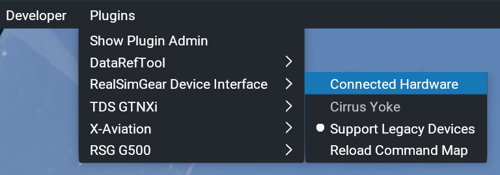
With the Connected Hardware window open:
-
Rotate the knob for the top (PFD) G5 display in both directions.
- Monitor the "Command" section of the connected hardware window to show the commands being sent by the G5 knob you are turning in both directions.
- The device that you can see the commands changing on needs to be set as PFD (highlighted in blue) under "Device Type". If you need to change the setting you can click on the boxes under Device Type to change from PFD or HSI.
- Once the PFD is set for the proper knob, set the second G5 to HSI.

These steps should have you up an running with the RealSimGear G5 Avionics in a few minutes. The next section of this guide will cover installing the G5 Avionics into your favorite aircraft.
Installing the G5 avionics into other aircraft in X-Plane
The RealSimGear G5 Avionics includes an installer that will allow you to place a 2D variant of the G5 in any aircraft for X-Plane 11 or X-Plane 12. The 2D variant will work directly with your RealSimGear G5 Display hardware, when correctly configured. This installer will not install a 3D version into your aircraft.
The installation into another aircraft is quite simple:
-
Navigate to your X-Plane installation folder. In this example we are using X-Plane 12 however, the process is the same for X-Plane 11.
-
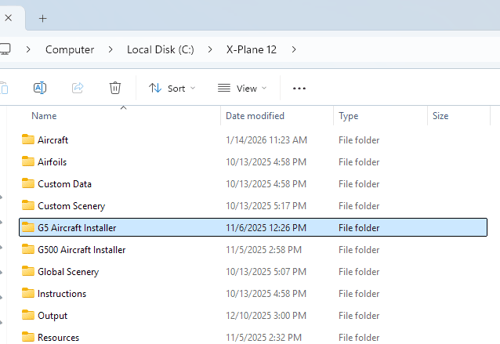
You will see a new folder (G5 Aircraft Installer) located in your X-Plane install folder:
-
Open the Aircraft installer folder and double-click the G5-windows-x64- installer.exe to run the app.

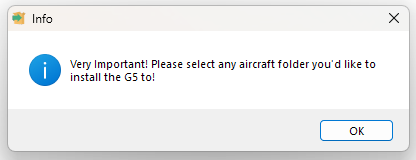
- Click OK on this window to proceed with the installation:
-
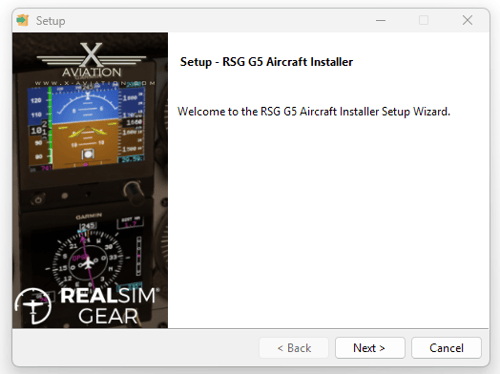
Click Next to proceed.
-
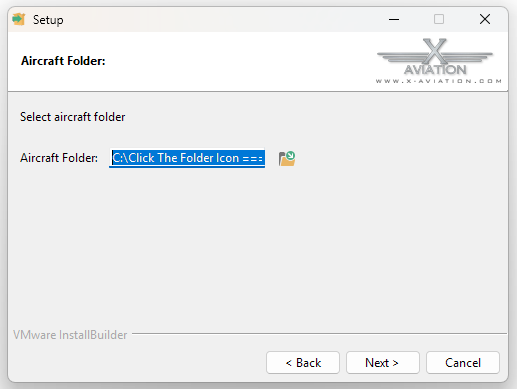
Click the folder icon to advance to the Aircraft Folder selection.
-
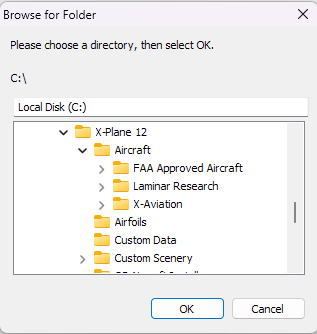
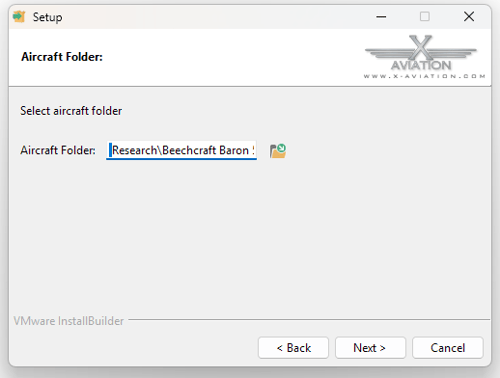
Follow the prompts to the target aircraft folder. The target aircraft is the aircraft you wish to use the G5 avionics with.
-
In this example we will install to the default Beechcraft Baron 58:
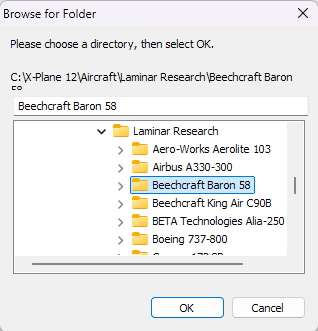
Note: The G5 avioincs are a universal instrument, you can install it to any aircraft you wish.
- Once the target folder is selected click Next.
-
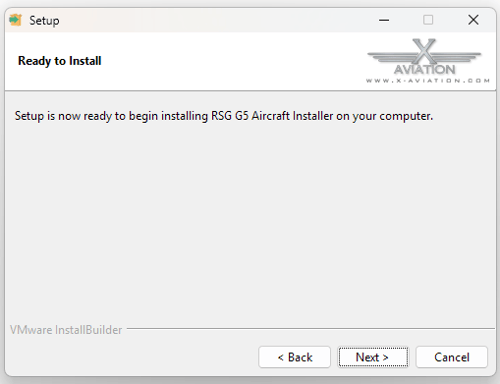
Click Next, when the installer states "Ready to Install"
- The installer will run and let you know when it is complete.
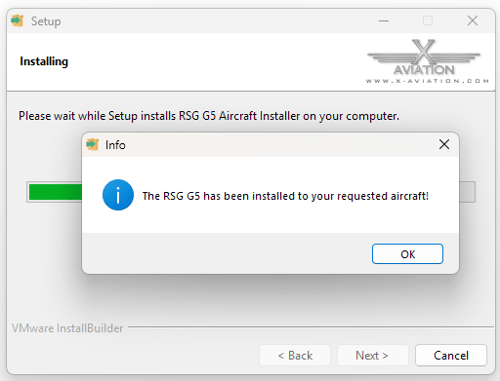
- Click OK to exit the installer.
With the installation completed, you can now start X-Plane and check the configuration.
Checking your custom configured aircraft in X-Plane:
To check that the G5 is installed to your favorite aircraft in X-Plane, start X-Plane and configure a flight.
-
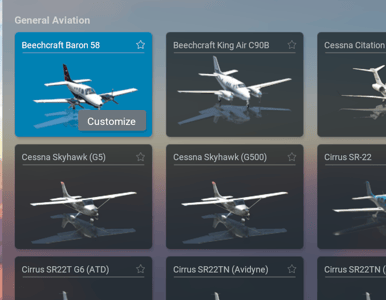
Installing the G5 to any aircraft in X-Plane will not append the " (G5) " to the aircraft description as it does with the Cessna Skyhawk that is included with the G5 avionics package.
In our example aircraft (Beechcraft Baron 58) you will see the title of the aircraft is unchanged on the aircraft selection menu:
-
Once have configured your flight, click Start Flight.
- When you have loaded into the simulation, you should see the G5 displays state "This aircraft has no 2D panel" momentarily as the plugin loads followed by the G5 avionics appearing on the RealSimGear G5 displays.
- If you need to make adjustments to the orientation of the PFD and HSI, or, the controls to your RealSimGear G5 displays knob, you can follow the same steps described earlier in this guide.