
Package Inclusions
-
One: Quick Start Guide.
-
One: RealSimGear GTN650 or GTN750.
-
One: 12V 2.0 Amp DC Power Adapter with a 5.5mm x 2.1mm barrel connector. (North America socket pattern).
-
One: USB A to B cable .
-
One: 90 Degree HDMI adapter (included with the GTN650 only).
-
Four: M3 Self-tapping screws for plastic to secure your device to an appropriate desktop stand.

Before You Start
Before you begin the setup of your RealSimGear GTN 750 or GTN 650, you will need to complete the following items before connecting the device to your computer:
Mounting your GTN to a RealSimGear Desktop Stand
The RealSimGear GTN 650 and GTN 750 can be mounted in a number of ways. The most common method of mounting will be through the use of a RealSimGear Desktop Stand (Sold Separately).
Included with your RealSimGear GTN, will be a small plastic bag containing four, M3 self-tapping screws. These four screws will be used to secure the GTN to the stand in the four holes depicted in the images below:
Note: Install the screws with a hand screwdriver (#2 Phillips Head). Overtightening the screws can strip the mounting holes or effect operation of the devices.
GTN 650

GTN 750

The images above show the GTN devices being mounted in a single device mount. If you have purchased a GTN combination mount, the method of installation will be the same, as the cutout patterns in the combo stands are the same as the single device stands.
Install the RealSimGear Plugin
You will need to download and install the current version of the RealSimGear Plugin for X-Plane 11 and/or X-Plane 12.
You can download the RealSimGear Plugin for X-Plane here:
RealSimGear Downloads for X-Plane 11 and X-Plane 12
Note: You will not need to install the optional touch screen drivers. This is only for older generation GTN750's and GTN650's (produced before October 2022)
Install the TDS Simulations Command Mapping for the RealSimGear Plugin.
By default, the RealSimGear plugin will provide commands for the RealityXP GTN Avionics packages. You will need to download and install the TDS Default Command Mapping file for the buttons and knobs on your RealSimGear GTN devices to control the TDS GTNXi avionics.
-
Default CommandMapping.ini - Version 9.4 - This is used for the RealSimGear Plugin version 2.0 or higher -
This file goes in the .."\X-Plane 12 (or 11)\Resources\plugins\RealSimGear" folder.
Install the TDS Simulations GTNXi for X-Plane
As of December 2025, RealSimGear recommends, and only supports, the use of the TDS Simulations GTNXi avionics platform with the RealSimGear GTN Avionics Hardware. Other avionics software packages may work with our devices, but do to lack of support or forward development, RealSimGear does not recommend their use with X-Plane.
The TDS GTNXi for X-Plane is a fully featured GTN software package that utilizes the Garmin GTN PC Trainer as a base for it's simulation. It is also fully updatable with Navigraph for navigation databases and onboard charts. The TDS Simulations GTNXi package also includes the software for both the 750 and 650 variants in one package.
You can purchase the TDS Simulations GTNXi for X-Plane here: tdssim.com

Installing the TDS GTNXi to your PC
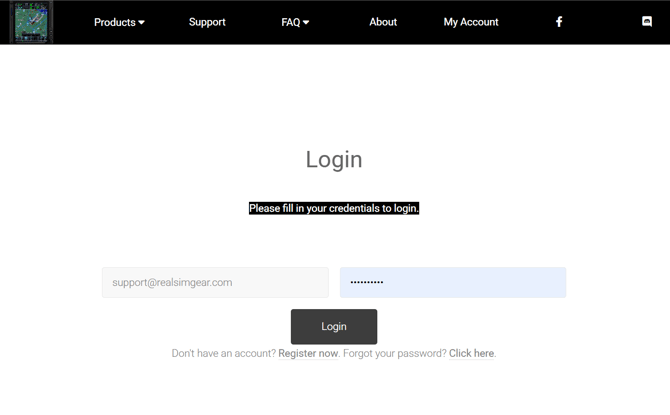
- After purchasing the TDS Simulations GTNXi for X-Plane, log into your account at tdssim.com
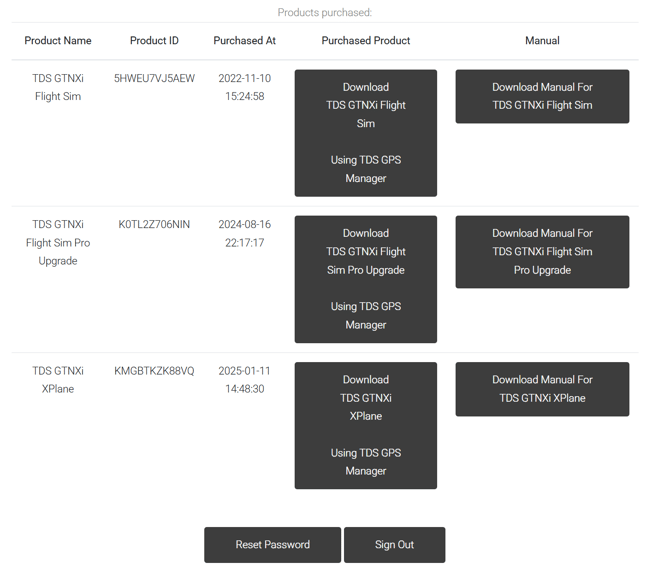
- Once you have logged into your account you will be presented with a history of any software you have purchased from TDS Simulations. You will need to download the TDSGPSManager.exe program for X-Plane from your account. We also recommend downloading and reading through the TDS GTNXi Manual for X-Plane which will give you additional information for the configuration of the avionics.
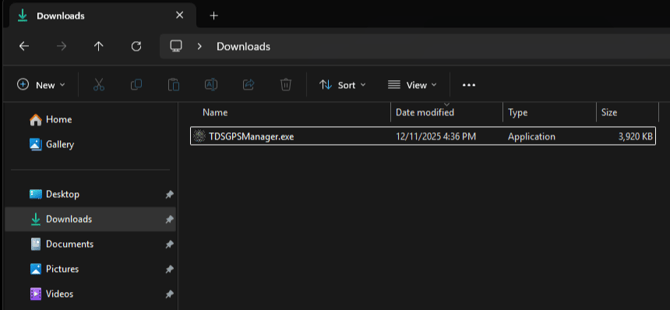
- Once you have downloaded the TDSGPSManager, navigate to the location your downloads are stored on your PC and run the TDSGPSManager.exe program.
- Windows will present you with a protection warning regarding the TDSGPSManager program:

- Click "More info", then click "Run anyway":
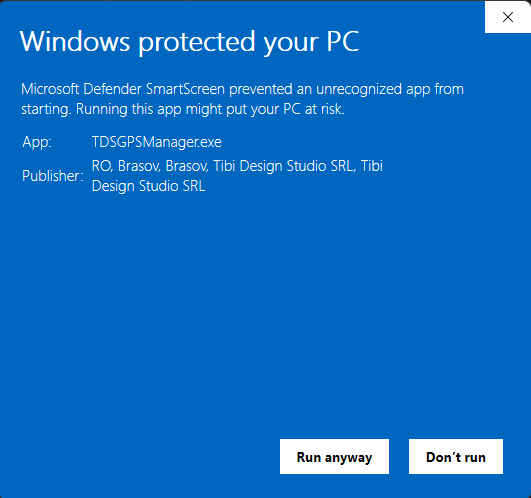
Note: The TDSGPSManager does not contain a virus or malware. This warning is presented as the program is not digitally signed for Windows and is a normal warning for unsigned applications in Windows.
- Once the TDSGPSManager has loaded, you will be prompted to log in using the same information you provided to access your account at tdssim.com:
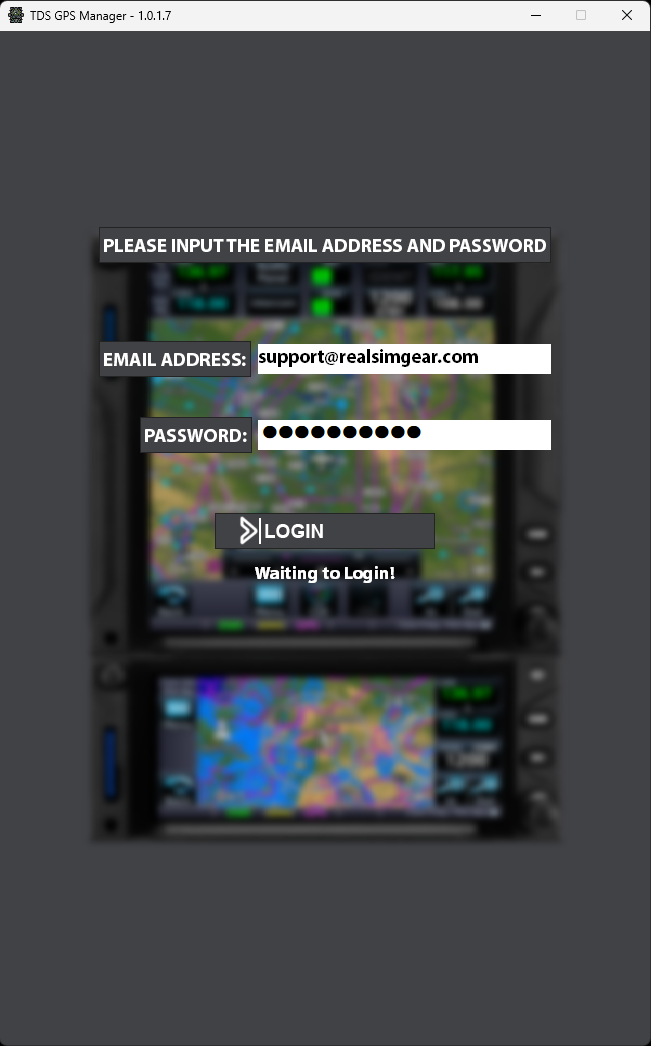
- The TDSGPSManager is the program you will use to install all of the necessary software for the avionics to function and you will use it to provide any future updates to the software package.
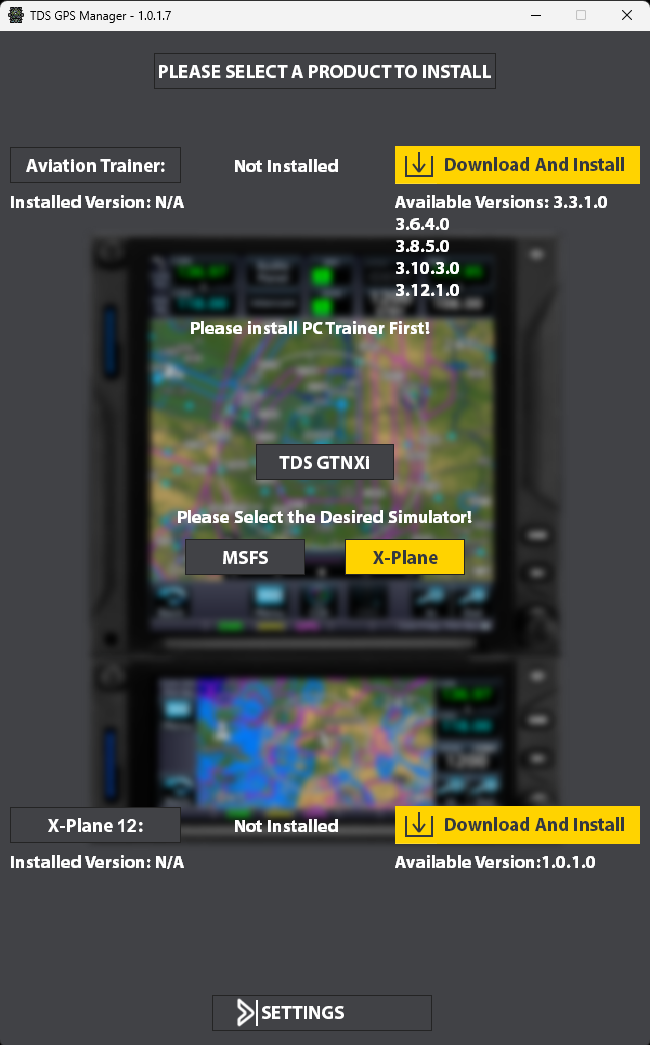
- The first component that needs to be installed is the Aviation Trainer.
- Click "Download And Install" for the Aviation Trainer.
- You will be presented with the following page on the TDSGPSManager:

- Choose only the "Recommended" PC Trainer Version. (this will maximize compatibility between the trainer and the plugin)
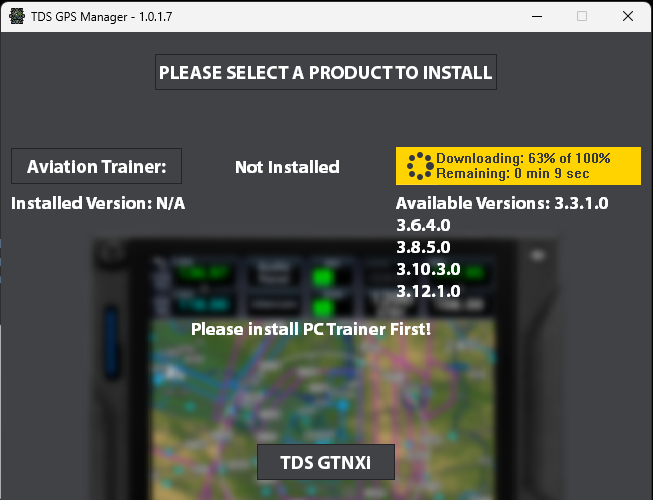
- The TDSGPSManager will switch back to the installation page and provide you a progress on the download of the trainer. Download time will vary depending on your internet connection:
- The Garmin Aviation Trainer installer will automatically open:
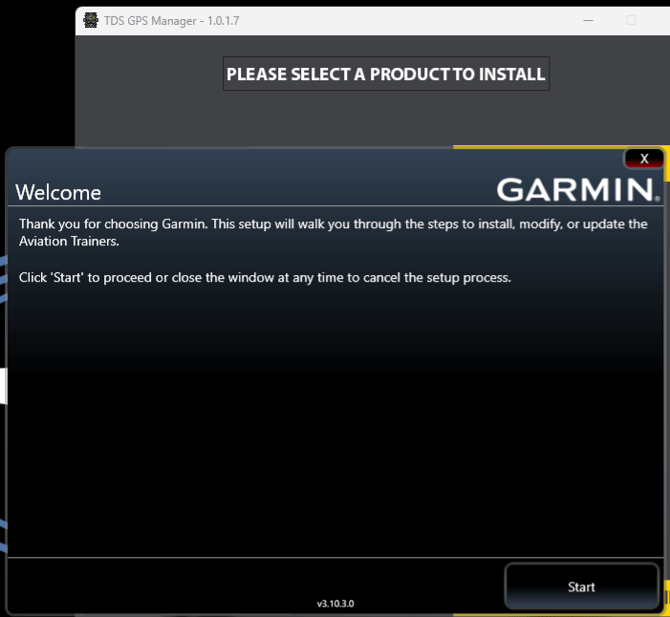
- Click "Start"
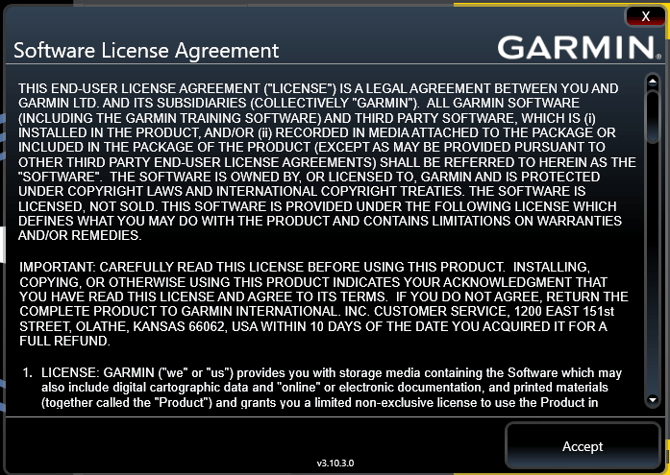
- You will need to accept the terms of the Garmin Aviation Trainer License Agreement:
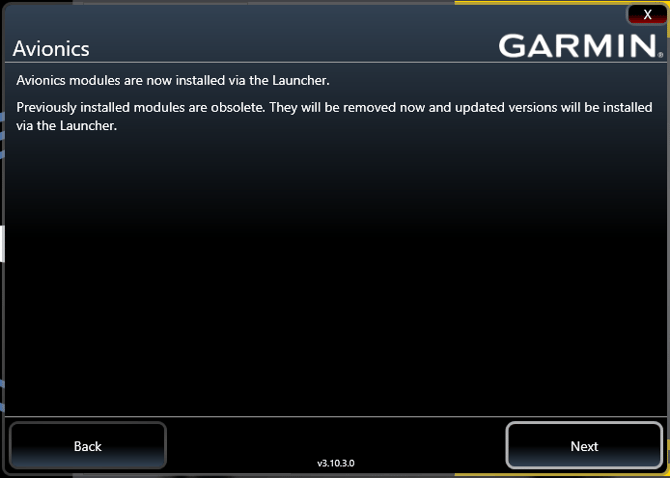
- Click "Next" on the following prompt:
- You will be prompted to choose any advanced installation options, such as where you would like to install the data for the Garmin Aviation Trainer. For the purposes of this guide we are installing to the default location:
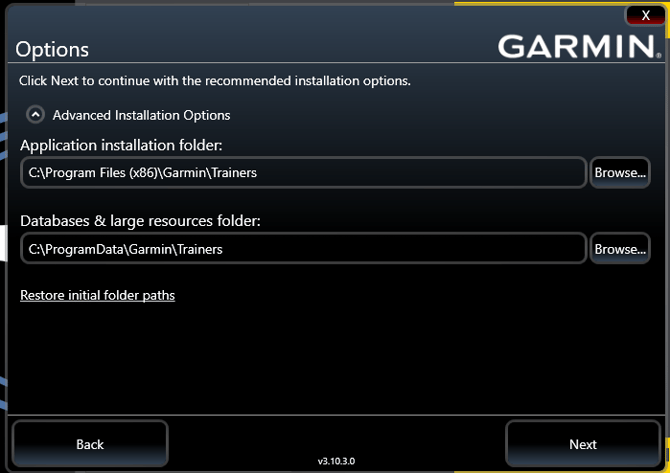
- Click "Next" on the options page.
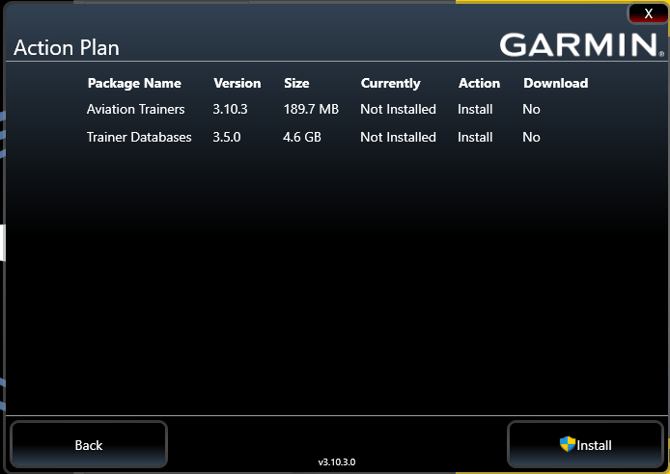
- The installer will now tell you what it will install and give you the option to start the installation.
- Click "Install"
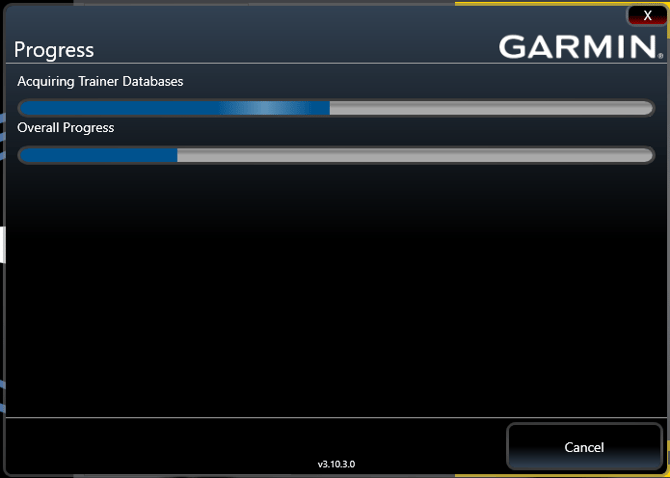
- The installer will then process the installation of the Aviation Trainer:
- When the installation is finished you will see the following prompt (minus the yellow arrow):
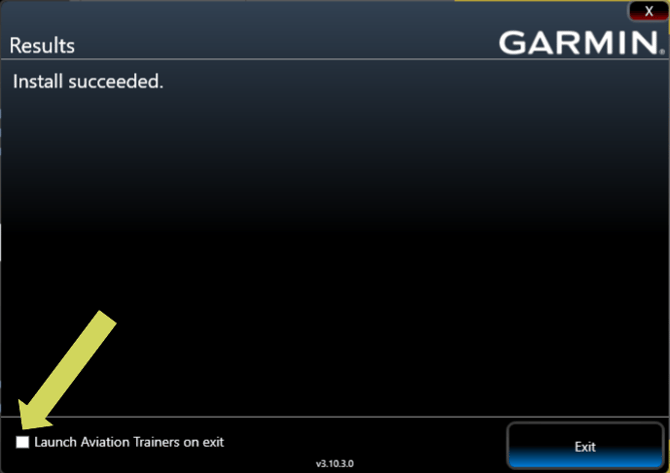
- Uncheck the option to "Launcher Aviation Trainers on exit"
- Click "Exit"
WARNING: It is highly advised not to open or launch any of the Garmin Aviation Trainers. Making changes to the Garmin Aviation Trainers will likely result in the TDS plugin within X-Plane providing a black pop out or cause errors in it's operation.
- Once the main Garmin Aviation Trainer has install, the second half of the Garmin Trainer will start automatically. This is the GTNXi Trainer required to run the TDS GTNXi in X-Plane.
- Choose "Start Install" on the following prompt:
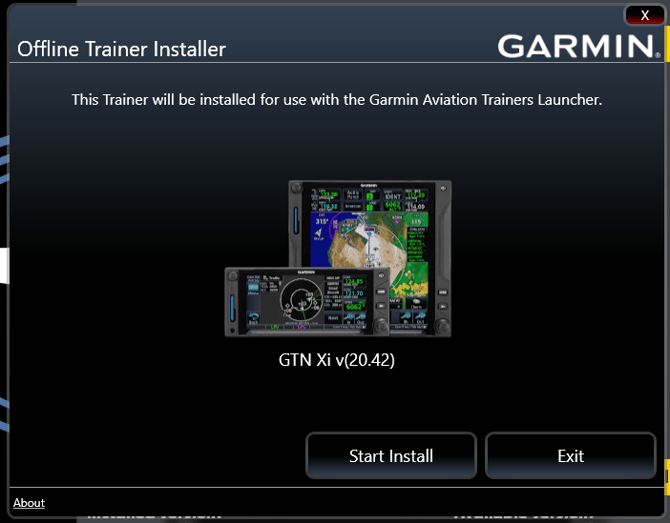
- Allow the GTN Xi Offline Trainer Installer to process.
- When complete you will be prompted with the following (minus the yellow arrow):
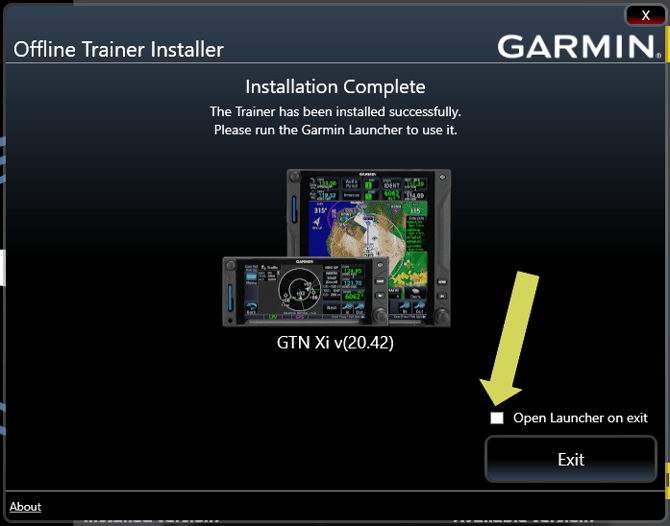
- Once again, Uncheck the option to "Open Launcher on exit"
- Click "Exit"
- The TDSGPSManager will provide confirmation of a successful install of the PC Trainer:
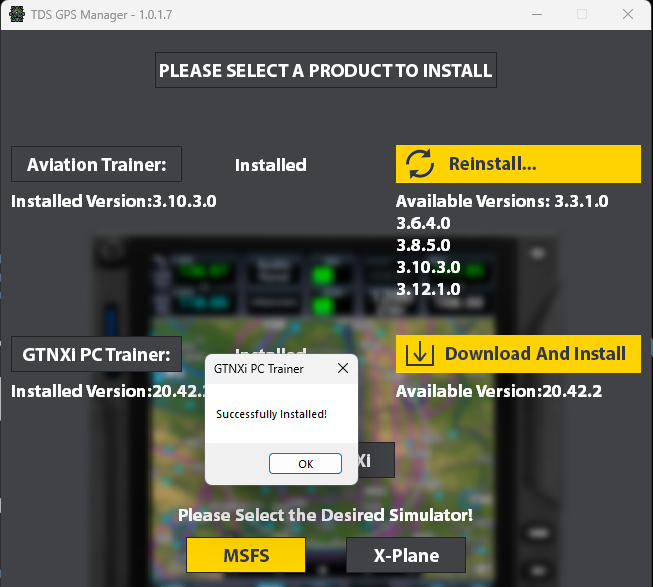
Note: You may opt to update the "GTNXI PC Trainer" to the highest available version offered.
It is only the "Aviation Trainer" that RealSimGear suggests using the TDS "Recommended" version.
- The last component to install is the actual plugin for X-Plane.
- Select the desired simulator (if you have both X-Plane and Microsoft Flight Simulator installed on the PC)
- Click "Download And Install" to install the plugin to X-Plane:
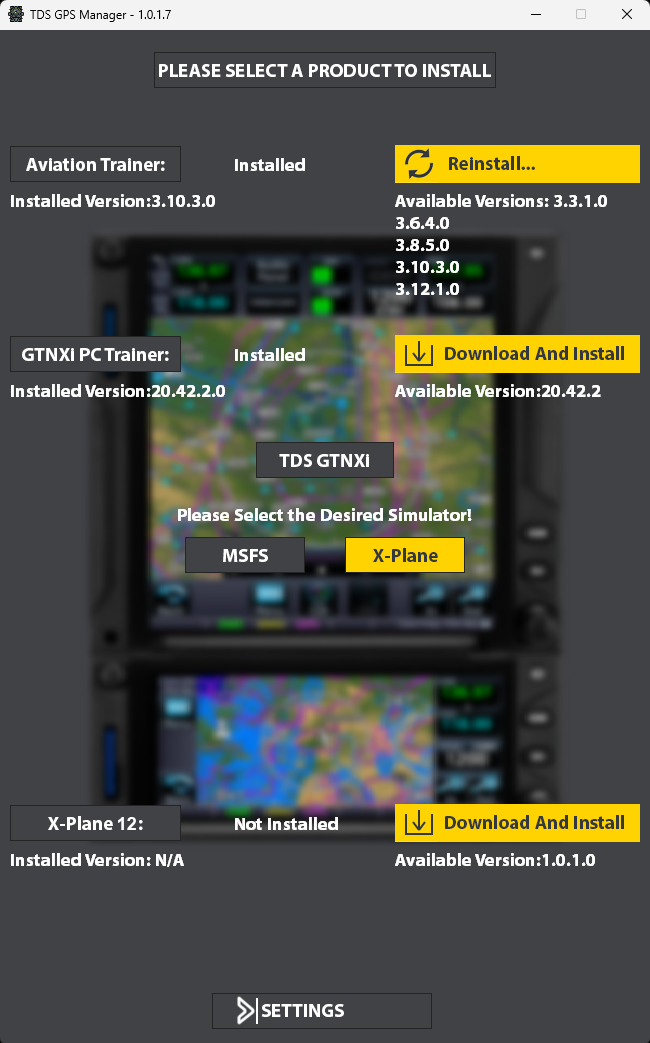
- The TDSGPSManager will also give you a confirmation that the plugin is installed into X-Plane. Once this is complete, you are finished with the installation process of the TDS GTNXi software into X-Plane.
- Close the TDSGPSManager when you have completed the installation process.
Configuring the TDS GTNXi in X-Plane
For X-Plane 11 and X-Plane 12, the TDS Simulations GTNXi is the most simple third party avionics package to configure for your RealSimGear GTN devices. The plugin is quite straightforward to use.
For the purposes of this guide, the system is configured with a single 4K main monitor and a single RealSimGear GTN750. You may also have a RealSimGear GTN650, or additional displays. The GTN750 is aligned to the top right of the main display:
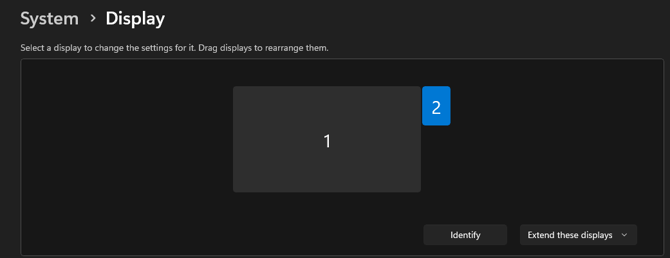
The following are the recommended settings for the RealSimGear GTN displays in windows:
GTN750: Resolution of 800x600 @60Hz with the orientation set to "Portrait (flipped)"
GTN650: Resolution of 1920x1080 @60Hz with the orientation set to "Landscape"
Configure the Touch Screen with Windows
You will need to tell windows, which displays in your display configuration are touch panel displays. This is done using Tablet PC Settings in Windows.
A complete guide for setting up a touch screen in Windows is provided in our help center, linked below:
RealSimGear Touch Screen Setup Guide for Current Generation Devices
Set up your GTN display in X-Plane
- Load into X-Plane 11 or X-Plane 12 (X-Plane 12.3.3 pictured)
- From the main menu, go to: Settings > Graphics
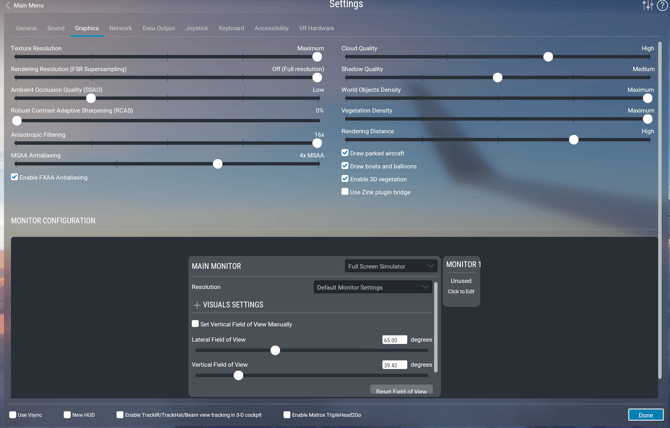
- Under "Monitor Configuration" you will see a nearly identical layout to our Windows Display settings menu.
- Click on the monitor that represents your first GTN device. In our case this is a GTN750.
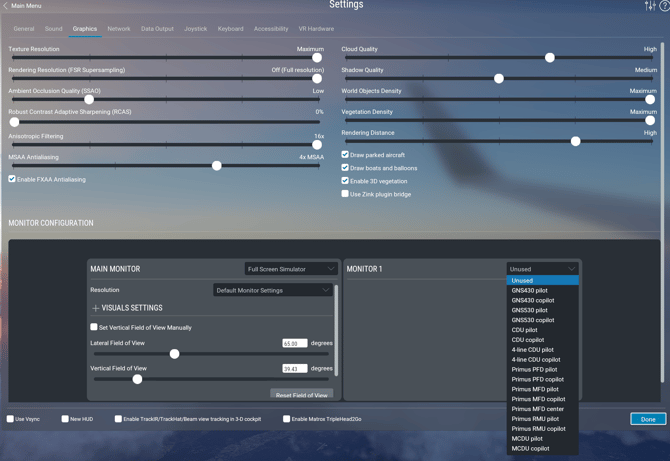
- From the dropdown menu on the top right of the monitor configurator, choose "Unused"
- Set the same mode of "Unused" for any other RealSimGear GTN displays you are using in your simulator configuration.
Note: We are setting the GTN screens to unused as the TDS GTNXi does not need these displays set to "2D Panel Only" to display our GTNXi avionics. Setting the GTN screens to Unused will prevent X-Plane from using any additional resources on your PC for rendering anything to those displays.
- Once you have finished setting the monitor configuration in the X-Plane graphics settings menu, click "Done" to exit back to the main menu.
- Configure a flight in the aircraft of your choice and proceed to load into the simulator.
Set the GTN devices in the RealSimGear Plugin
You will need to tell the RealSimGear devices what commands they should be sending, as it is possible for RealSimGear GTN's to control other GTN units functions (750 controls a 650 for example). This is an easy, one-time setting:
- Move your mouse to the top of the main monitor to access the menu ribbon.
- Go to Plugins > RealSimGear Device Interface > Connected Hardware
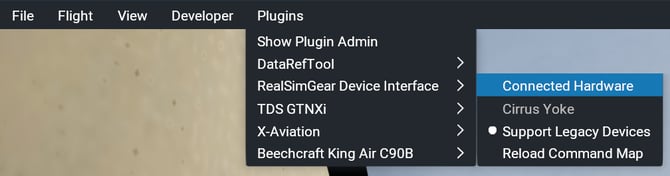
- Set the "Device Type" for the GTN device you have:
For normal operations, a GTN750 must be set to COM1.
For normal operations, a GTN650 must be set to COM2.

Once this is complete you can close the Connected Hardware window.
Generating a GTN pop out for X-Plane
Once we have loaded into our flight in X-Plane we are ready to generate our GTN pop out and move it to a RealSimGear GTN device.
- Move your mouse to the top of the main monitor to access the menu ribbon.
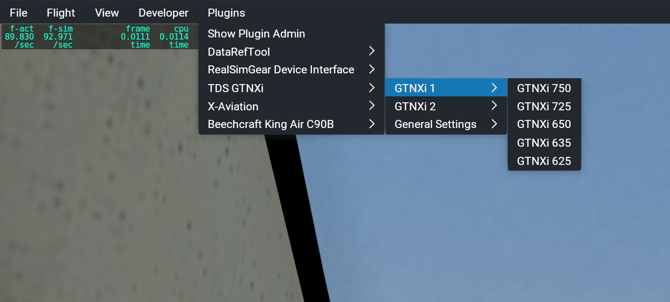
- Go to Plugins > TDS GTNXi > GTNXi 1
- Select the first device for your GTN configuration. In our case it will be a GTN750:
- Your first GTN device will appear on the main monitor:
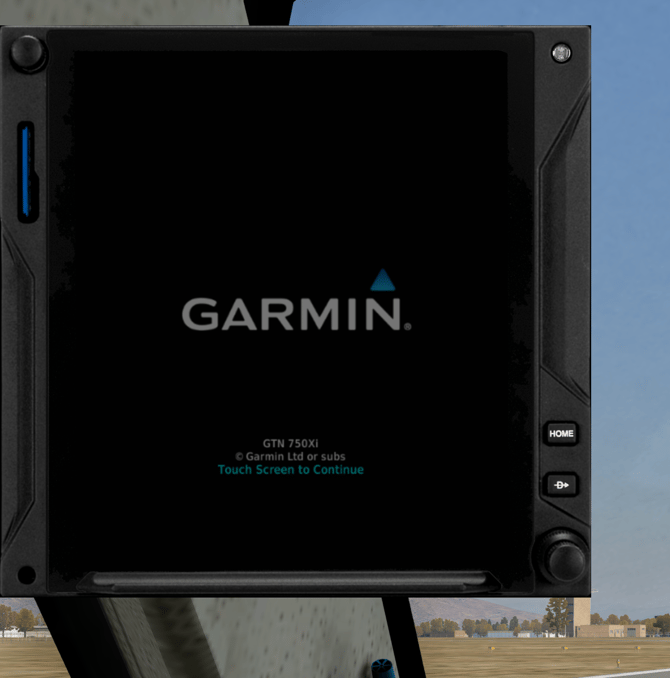
- We now need to set the pop-up to the proper configuration and move it to the RealSimGear GTN750.
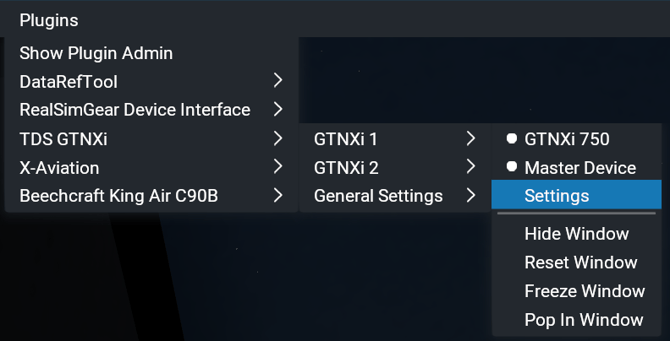
- Go to the menu ribbon and to: Plugins > TDS GTNXi > GTNXi 1 > Settings:
- Scroll to the bottom of the settings menu for GTNXi 1, you will see the "Monitor Support" section:
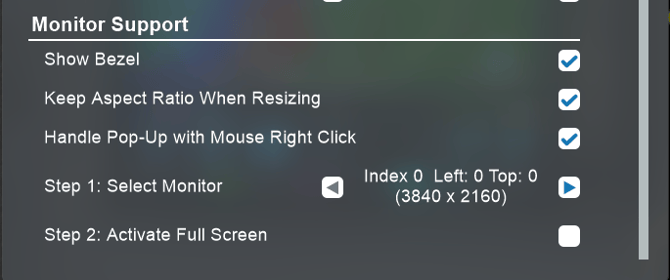
- Uncheck: "Show Bezel" and "Keep Aspect Ratio When Resizing"
- Next to "Step 1: Select Monitor", use the left or right arrow to cycle through the available monitors in X-Plane. "Index 0" will be the monitor set as "Main Display" in the X-Plane graphics settings.
In our case "Index 1" is our GTN750 monitor so we will select Index 1.
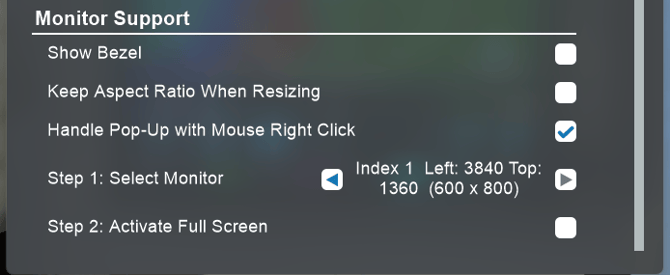
- The final step is to click the white box next to "Step 2: Activate Full Screen". A check mark will not appear here, but you will see your GTN pop out fill the entire screen of your selected GTN device.
- That's it! You have completed the pop out procedure and moved your first TDS GTNXi pop out to your RealSimGear GTN device.
If you have a second RealSimGear GTN, such as a GTN650, you can follow the same steps above, but for "GTNXi 2" from the plugin menu. All of the same steps shown above for the GTNXi 1 - GTN750 will apply to the second GTNXi pop out.
Getting Support for TDS Simulations GTNXi Avionics
RealSimGear is happy to help assist in getting your RealSimGear GTN750 and GTN650 working with the TDS Simulations GTNXi Avionics. If you are having trouble even after following our guide above, we invite you to reach out to our support team for assistance.
For assistance with the installation and setup of your RealSimGear GTN devices, please send us and email to: support@realsimgear.com. Let us know where you are stuck and we will be happy to give you an assist.
If you are having issues with:
- Accessing your TDS Simulations Account
- Purchasing the TDS Simulations GTNXi Avionics
- Installation error codes
- General product support for the TDS GTNXi
- Third party aircraft integrations
Please contact the support department for TDS Simulations. There are two ways to get in touch with TDS Simulations:
- TDS Sim Discord: https://discord.gg/NupgPCUgsH
- TDS Sim Support forum: http://forum.tdssim.com/