
BEFORE YOU BEGIN
Overview
This guide connects two or more X-Plane 12 simulators on the same local network so they fly together in one multiplayer session. X-Plane's built-in multiplayer is peer to peer, using each sim's IP address, with no central host or lobby. Each PC needs its Windows Defender Firewall opened for X-Plane before the sims can see each other.
Before you start
- All PCs on the same local network (wired Ethernet recommended)
- Each PC running its own licensed copy of X-Plane 12, on the same or compatible update version
- Windows administrator access on each PC (needed to change firewall settings)
- The private IPv4 address of each PC (usually starts with 192.168. or 10.)
To find a PC's IP address: open Command Prompt, type ipconfig, and note the IPv4 Address under the active network adapter.
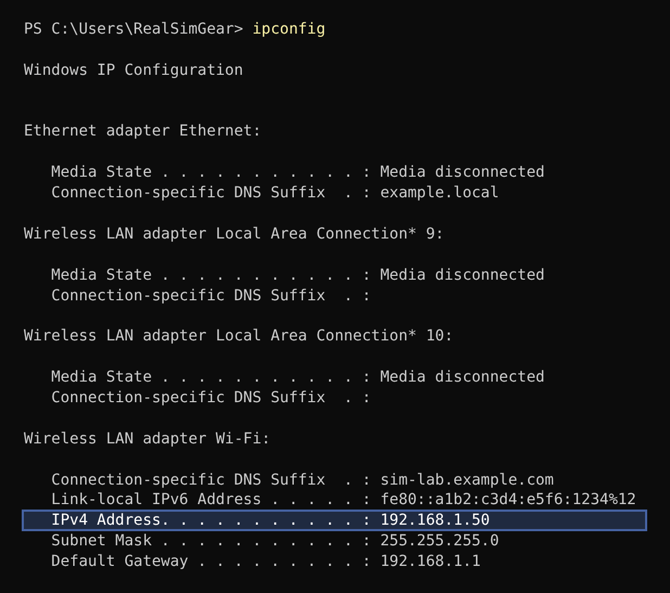
Example ipconfig output. The highlighted IPv4 Address is the one to enter in X-Plane.
Steps and screenshots were verified on a REALSIMGEAR® test setup running X-Plane 12 on Windows, October 2026. IP addresses and network names in the screenshots are samples.
STEP 1 · WINDOWS
Part 1: Open the firewall in Windows Defender
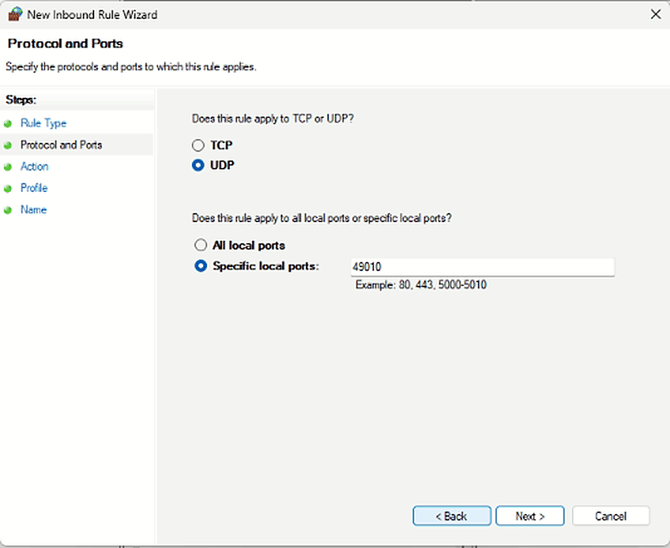
Do this on every PC in the session. X-Plane 12 multiplayer uses UDP port 49010, shown next to each connection under Settings > Network > Multiplayer (see Part 2). Option A is the method Laminar's manual recommends. Option B opens the port directly. Doing both is fine.
Option A: Allow X-Plane as an app
- Open Control Panel > System and Security > Windows Defender Firewall and note which network shows as Connected.
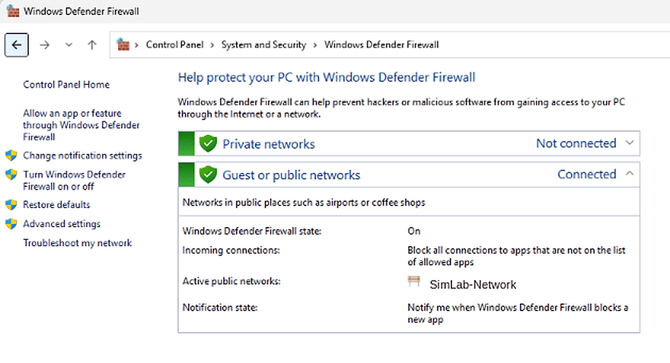
This PC is on a guest or public network, so X-Plane must be allowed on Public.
- In the left menu, click Allow an app or feature through Windows Defender Firewall, then Change settings (requires admin).
- Find X-Plane and tick both Private and Public. If it is missing, click Allow another app..., browse to X-Plane.exe in the X-Plane 12 folder, and add it.
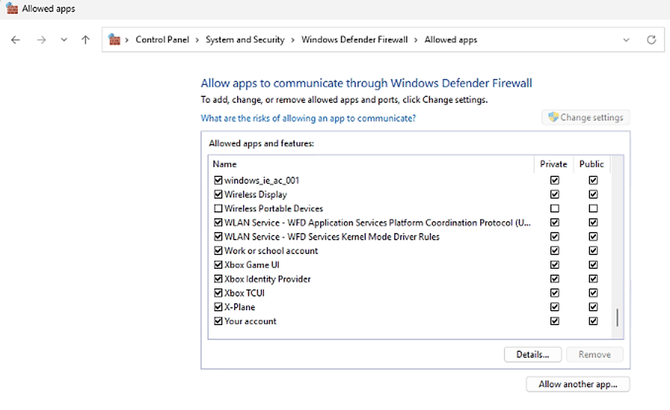
- Click OK.
Option B: Open UDP port 49010 with an inbound rule
- Click Start, type Windows Defender Firewall with Advanced Security (or just wf.msc), and open it. Alternatively, press Windows + R, type wf.msc, and press Enter.
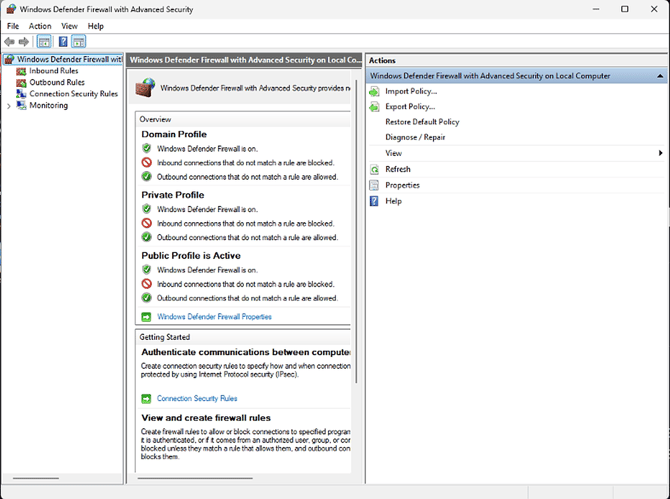
- In the left pane, click Inbound Rules, then New Rule... in the right pane.
- Rule Type: choose Port, then Next.
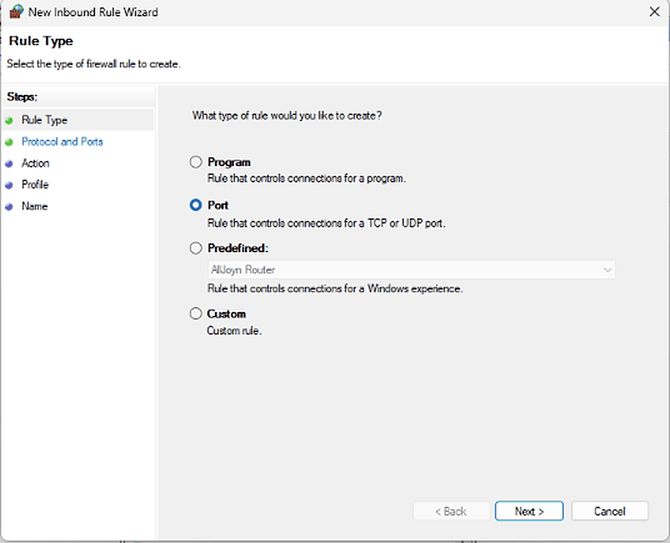
- Protocol and Ports: select UDP, then Specific local ports, and enter 49010. Click Next.
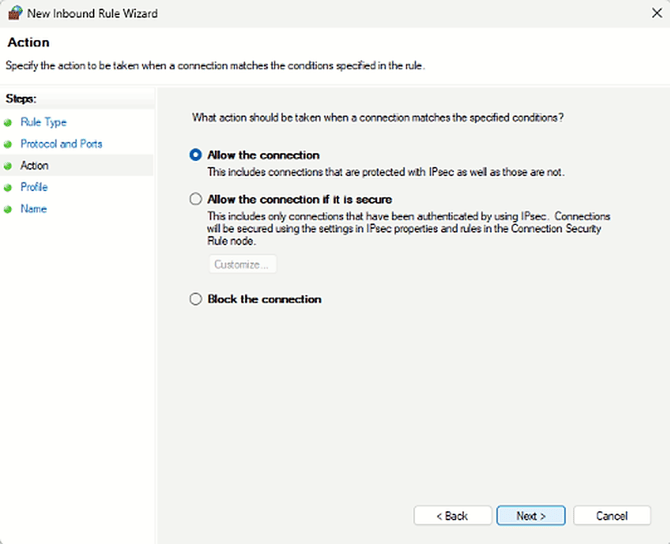
- Action: choose Allow the connection, then Next.
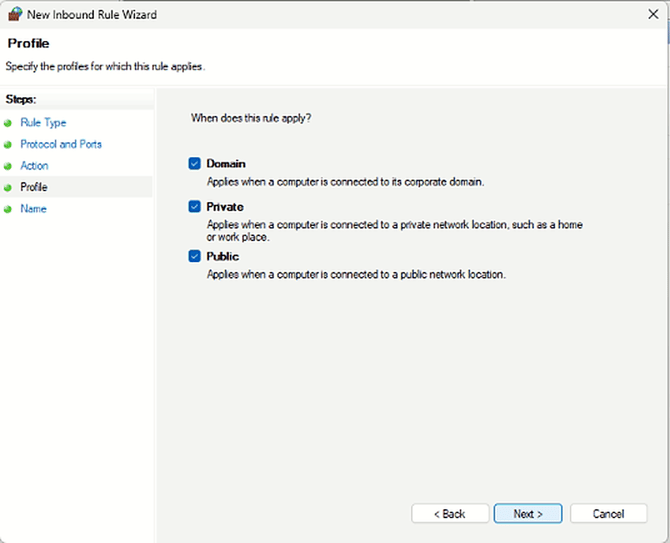
- Profile: tick Domain, Private and Public, then Next.
- Name: enter a name such as X-Plane Multiplayer, then click Finish.
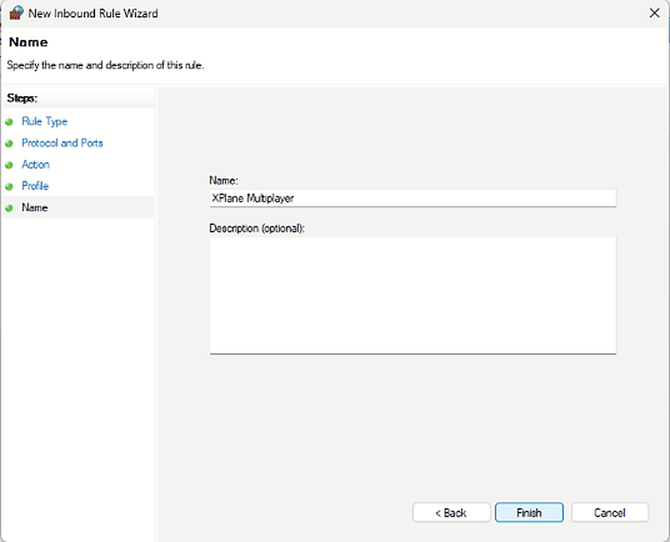
Shortcut: PowerShell as Administrator
This creates the same rule in one line.
New-NetFirewallRule -DisplayName "X-Plane Multiplayer UDP" -Direction Inbound -Protocol UDP -LocalPort 49010 -Action Allow
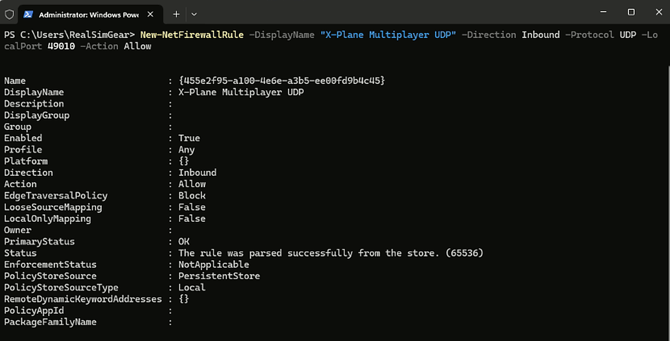
Enabled: True and Action: Allow in the output confirm the rule was created. Outbound traffic is allowed by default in Windows, so no outbound rule is needed.
School or company-managed PCs may have firewall policies set by IT that override these settings. If the rule has no effect, check with the customer's IT team.
STEP 2 · X-PLANE
Part 2: Set up multiplayer in X-Plane
Every sim must add every other sim. In the examples below, Sim A is 192.168.1.50 and Sim B is 192.168.1.51.
- Launch X-Plane 12 and go to Settings > Network. This PC's address is listed under This machine's IP addresses. Make sure Accept incoming connections at the bottom of the screen is switched on.
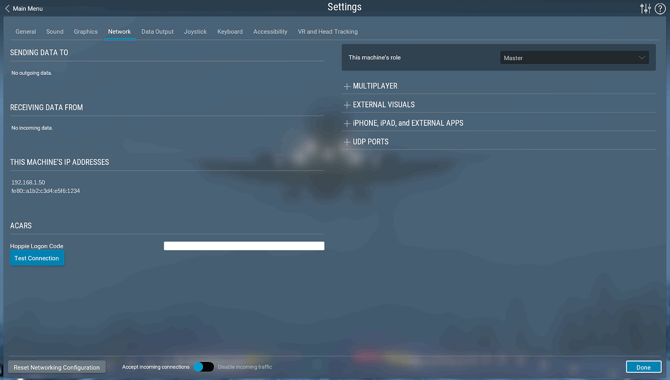
Network tab on Sim A. In our setup, This machine's role stayed at Master.
- Click MULTIPLAYER to expand it, then click Add Multiplayer Machine.
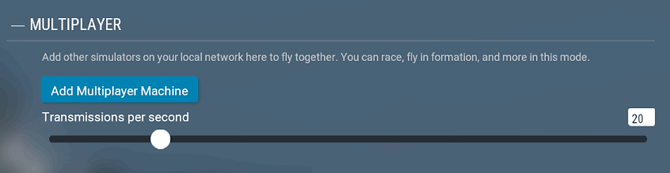
- In IP Address, enter the other sim's IP. Leave Port at 49010 and Transmissions per second at the default (20).
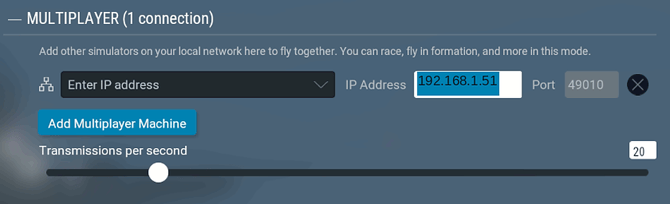
Sim A adding Sim B. The heading changes to MULTIPLAYER (1 connection).
- Repeat on Sim B, entering Sim A's address (192.168.1.50).
- Start a flight on each sim at the same airport, but pick different ramp starts so the aircraft don't spawn on top of each other.
- For matching conditions, set the same time of day, weather and scenery on each sim. These are not synced automatically.
Each pilot should now see the other aircraft. Test first with a default X-Plane aircraft before using custom or third-party aircraft and plugins.
|
|
|


A live multiplayer session: two networked sims flying in formation, each pilot seeing the other's aircraft.
SUPPORT
Troubleshooting
|
SYMPTOM |
CHECK |
|---|---|
|
Sims don't see each other |
Confirm each sim added the other's IP. Both directions are required. |
|
Still no connection |
Confirm the firewall rule exists on every PC and the network profile (Private/Public) matches what Windows shows for the active network. |
|
Wrong IP |
Re-run ipconfig. IP addresses can change after a reboot unless the network assigns fixed (static or reserved) addresses. |
|
Connection test |
From one PC, run ping <other PC's IP> in Command Prompt. No reply points to a network or firewall issue, not X-Plane. Ping can be blocked by the firewall even when X-Plane traffic is allowed. |
|
Aircraft looks wrong or missing |
Make sure both sims are on compatible X-Plane 12 updates and test with a default aircraft first. |
|
Firewall changes have no effect |
The PC may be managed by IT policy. Ask the customer's IT team to allow X-Plane or the UDP port. |
Tip: ask the venue to reserve fixed IP addresses for the sim PCs so the multiplayer setup doesn't break after a restart.
REFERENCES
Sources
- X-Plane 12 Desktop Manual (Laminar Research): firewall guidance and network licensing
- Using Networked Multiplayer, External Visuals & Apps (Laminar support): network requirements. Parts of this article still refer to X-Plane 11.
- How to use multiplayer in X-Plane 12 (Fly Away Simulation, third party): background on X-Plane 12 multiplayer
- Windows Defender Firewall steps and the PowerShell command are standard Windows procedures, not taken from a cited page. Verify on the target PC's Windows version.
- Screenshots, UI labels and port 49010: captured on a REALSIMGEAR test setup, October 2026