
Generation 1 Touch Screens:
Prior to September 2022, RealSimGear GTN 750 and GTN 650 devices used a resistive touch screen to control the touch interface. These units were easily distinguishable by a 6-8 inch (150-200mm) hard-wired USB connection attached to the device and exiting the rear housing. This type of touch screen is not capable of using the built in touch screen functions of Windows and must use the PenMount Control Software.
PenMount Control Software:
PenMount Control Software can be installed in one of two methods:
-
Provided in the RealSimGear Plugin Installer as "Optional Touch Screen Drivers"
-
Stand-alone software installer available here: PenMount Control Software. When using this method, the download above will download a .zip file. You will need to open the .zip file, move the folder it contains to your Desktop, then inside the resulting folder you will find the setup.exe which will be run to install the software.
** When installing the stand-alone software, make sure to select "Yes" to the question about whether you want to use this device as a mouse.
If you need to install this software for your RealSimGear Legacy Devices, please follow the on screen instructions for the installer before configuring your legacy touch screen.
Configure the PenMount Touch Screen:
-
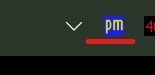
Right-click the PenMount Icon in the system tray and select Control Panel. (alternatively, you can use the Windows search function and search the Apps for "PenMount")
-
Right-click the PM icon to choose Penmount Control Panel.
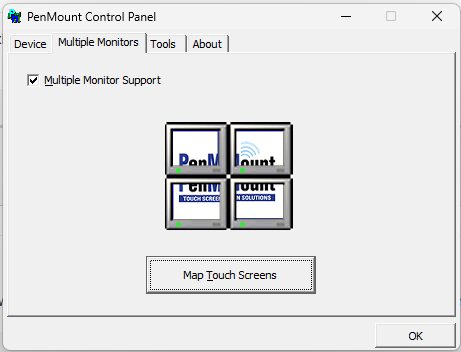
- Click on the Multiple Monitors tab, and then Map Touch Screens. Follow the instructions on your screens which will turn each screen blue, with a message so hit the "S" key to skip screens that are not the touchscreen, and when you get to the RealSimGear touch device, go ahead and touch the screen with your finger.
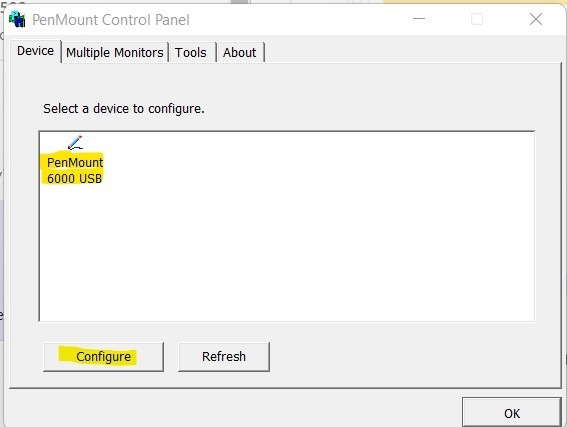
- Click bak to the Device tab, and then click the device to configure (if you have both 650 and 750 - do one then repeat this process for the 2nd device) then click Configure.
-
Click the Setting tab
-
Next to Operation Mode: click the dropdown menu and select "Mouse Emulation"
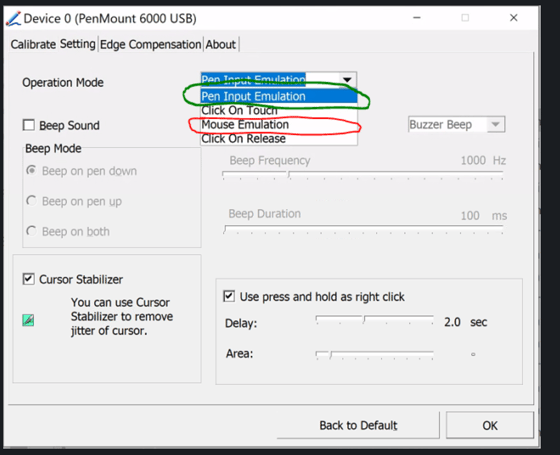
- Your PenMount Control Software configuration is complete, click OK to exit.