
RealSimGear G5 Hardware Controls
Power Button:
-
To turn on the G5, push the power button. The startup process will commence.
-
To turn off the G5 push and hold the power button until the countdown shows. Once the countdown shows, let go. To cancel the power off, tap the power button.
Knob:
-
To advance the current data point forwards, rotate the knob clockwise
-
To advance the current data point backward, rotate the knob counter-clockwise/anti-clockwise
-
To select the current setting in the menu, or to trigger the menu, click the center of the knob.
RealSimGear G5 Avionics PFD
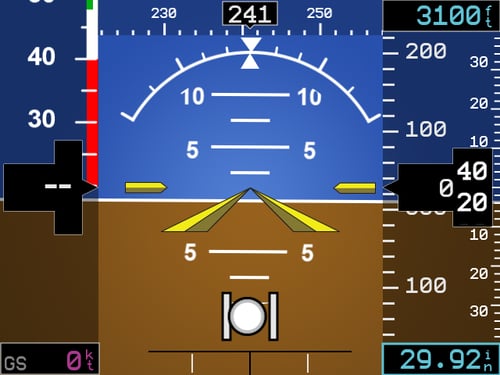
Data:
-
The left side of the PFD has the airspeed indicator.
-
The right side of the PFD has the altimeter and vertical speed indicator.
-
The top of the PFD has the current magnetic heading.
-
The bottom left corner has the current ground speed.
-
The bottom right corner has the current barometric pressure.
-
The top right corner has the current autopilot selected altitude.
Changing values:
-
By default, rotating the knob will adjust the barometric pressure.
-
To change other values, click the knob to enter the menu.
To change other values, click the knob to enter the menu.
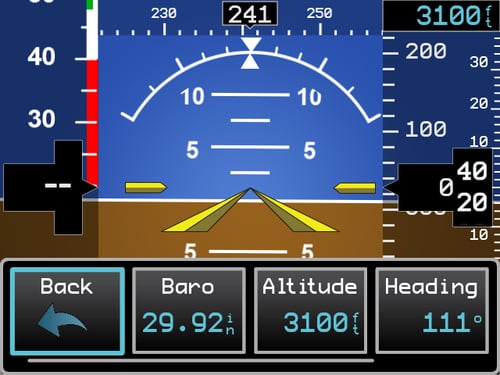
In the menu, rotate the knob to choose your setting:
-
Back – this will hide the menu and not change the current setting.
-
Baro – this will make barometric pressure the current setting.
-
Altitude – this will make the altitude preselect the current setting.
-
Heading – this will make the heading bug the current setting.
-
HSI – this will move the G5 into HSI mode (see RealSimGear G5 Avionics HSI).
RealSimGear G5 Avionics HSI
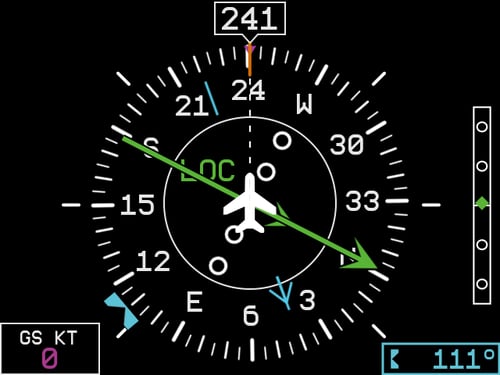
Data
-
The top of the rotating compass will show the current heading.
-
The rotating compass will rotate with the magnetic heading.
-
The large arrow will point in the direction of the course.
-
The inner arrow contained in the to/from indicator.
-
The center of the arrow moves to the relative left and right of the arrow to show horizontal deflection.
-
-
The right side shows the vertical deflection indicator.
-
The bug on the compass is the heading-bug.
-
The bottom right corner shows the degree of the heading-bug.
-
(Configurable) The cyan arrow on the compass is the bearing pointer.
-
The bottom left corner shows the current ground speed.
Changing values
-
By default, rotating the knob will adjust the heading bug.
-
To change other values, click the knob to enter the menu.
To change other values, click the knob to enter the menu
In the menu, rotate the knob to choose your setting:
-
Back – this will hide the menu and not change the current setting.
-
Heading – this will make the heading bug the current setting.
-
Course – this will make the course select the current setting
-
Bearing Pointer – clicking this will toggle the visibility of the bearing pointer
-
PFD – this will move the G5 into PFD mode (RealSimGear G5 Avionics PFD)

Editing the PFD Speed Tape
Note: This section is intended for advanced users who have experience editing image files in programs like Adobe Photoshop, Adobe Illustrator, or ither image editing programs.
Editing of the G5 Speed Tape is not a service provided by RealSimGear.
In most cases, when the RealSimGear G5 is added to additional aircraft the colors of the speed tape will not match the colors of other speed indicators on the aircraft such as an analog airspeed indicator.
The "speed tape" of the RealSimGear G5 can be edited to move the color ranges to match the desired speed profile of the aircraft. If done properly you can also add speed bugs to the right side of the speed tape by expanding the width of the speed tape file.
Image files:
Image files you need to change for the speed tape are installed by the avionics installer to the target aircraft you are use the G5 avionics with. For example: G5 artwork that is present on the Cessna 172 Skyhawk that installed with the avionics can be found in the following folder:
"C:\X-Plane 12\Aircraft\X-Aviation\Cessna 172SP G5\plugins\G5\resources\g5\"
The speed tape file you need to edit is: "g5_airspeed.png"
The following image is what the speed tape file looks like. The grey background is not present in the actual file, it has been added for clarity in this guide.

With the file open in an image editor you are free to move the color scale as needed for your aircraft.
Note: Make sure you save your edited speed tape file as a .png file. Other file types will not work and may cause a crash in X-Plane.