
With the release of X-Plane 12.4.x, several changes were made to the X-Plane 12 simulator platform that will cause issues, and platform crashes across multiple aircraft and avionics packages in use by RealSimGear components and complete simulator systems.
If you have one of the packaged listed below and have updated your X-Plane 12 installation to 12.4.0 or higher, you will need to revert you installation back to X-Plane 12.3.3:
Cirrus SR Avidyne (includes retail versions sold through X-Aviation.com)Cirrus SR G3-G6 G1000 (includes retail versions sold through X-Aviation.com)Cirrus SR G7Cirrus SF50 Vision JetDiamond DA40NGRealSimGear Perspective+ AvionicsRealSimGear NXi AvionicsRealSimGear G5 AvionicsRealSimGear G500 AvionicsRealSimGear Steam Gauges
How to downgrade from X-Plane 12.4.x to 12.3.3
To start, you will need to ensure you have the X-Plane 12 Installer in your main X-Plane 12 folder. Typically X-Plane 12 will be installed in the following folder in Windows: C:\X-Plane 12
If you do not have the X-Plane 12 installer in this folder you can download a copy from the link below:
X-Plane 12 Digital Installer Download
Note: The X-Plane 12 Digital Installer is a .zip file. Please open the .zip file and extract "X-Plane 12 Installer.exe" to C:\X-Plane 12

To begin the downgrade process you will need to open the Windows Command Prompt.
-
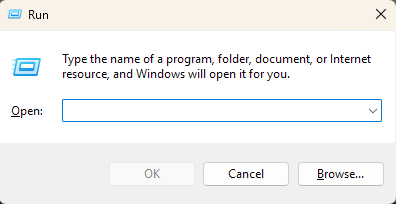
Press the Windows key and the "R" key on your keyboard, this will open the Run dialog:
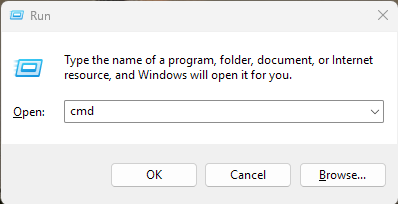
- Type "cmd" and then press enter or click the "OK" button:
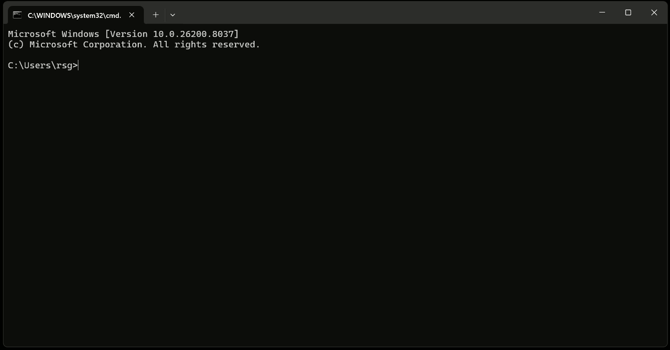
- The Windows Command Prompt will now open:
-
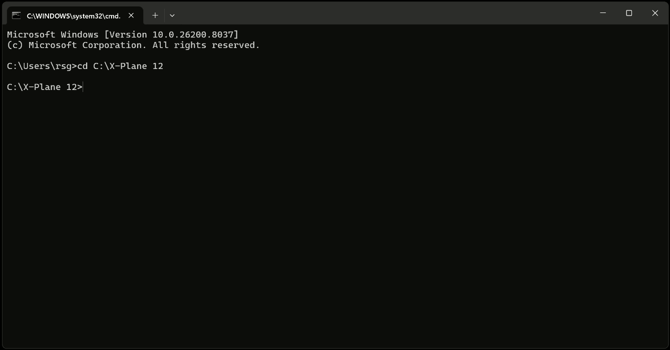
You will need to change the operating directory, this is done by typing (or copy/paste) of the following command into the Command prompt: cd C:\X-Plane 12
The command prompt will switch to the X-Plane 12 directory:
- We now need to send the command for the X-Plane installer to configure itself to install a specific version of X-Plane 12.3.3. The command listed below is the exact command you need to use. We recommend copying and pasting the command into the command prompt window:
"X-Plane 12 Installer.exe" --install_name="X-Plane 12.3.3-r1-eaab172a"
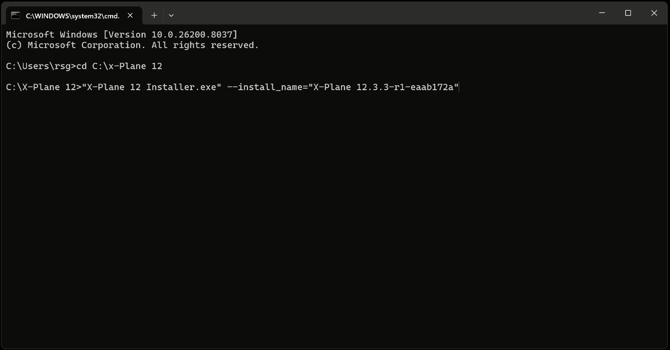
- Once the command is place, press enter.
- Once you have pressed enter, the X-Plane 12 installer will start. Depending on your system security settings you may be prompted by Windows Security to Allow or Deny a connection for the X-Plane 12 Installer. Please click Allow
- Once the installer loads, you should be presented with the following:
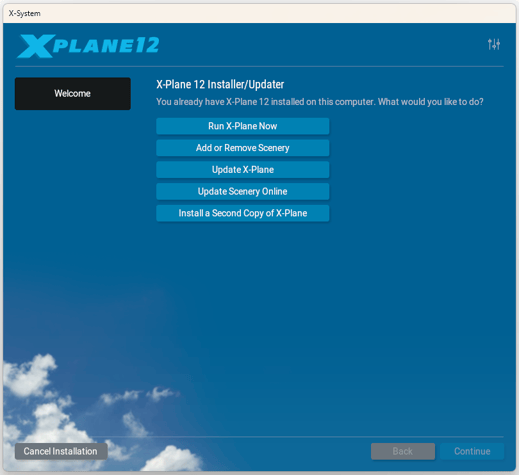
- Click "Update X-Plane"
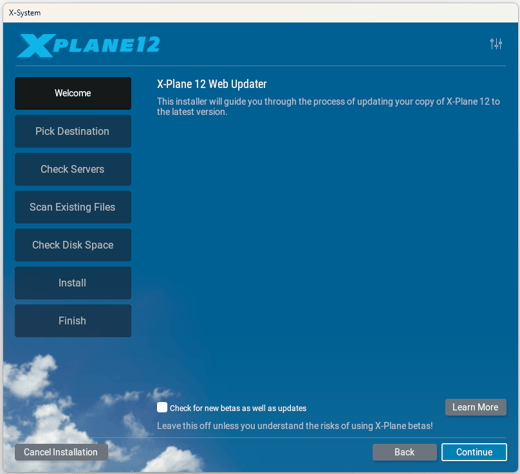
- On the next window, Do not check the box "Check for new betas as well as updates", click "Continue"
- Make sure the install directory is correct, then click "Continue":
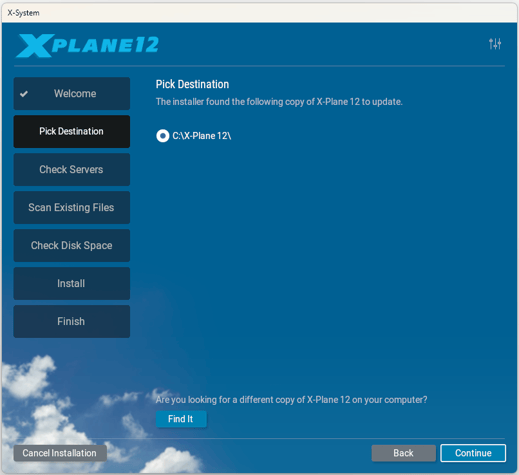
- Once you click Continue, the installer will process its file checks. After this is completed you will be presented with a status for the installer, indicating the version it will install, and how much disk space is required. Click "Continue":
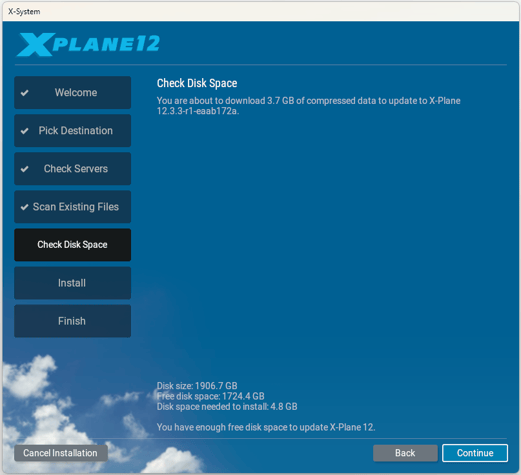
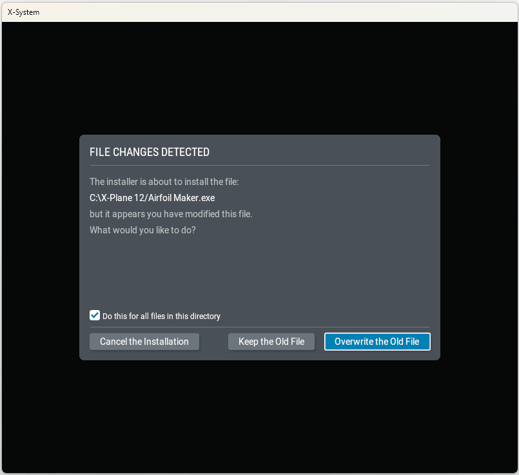
- Once you click Continue, the installer will warn you about about File Changes Detected. This is normal behavior for any update process of X-Plane 12.
- Click the check box for "Do this for all files in the directory"
- Then click the Overwrite the Old File button and/or Delete Old File button. The Overwrite button will need to be clicked for every file the installer will intend to overwrite/delete. The means you will need to click the Delete/Overwrite the Old File button for every prompt. This will be between 75 and 150 clicks of the button with your mouse.
- Once you have completed the the File Changes Detected click-fest, the installer will start downloading and updating (reverting) X-Plane 12 to 12.3.3. The time this takes will depend on your internet speed:
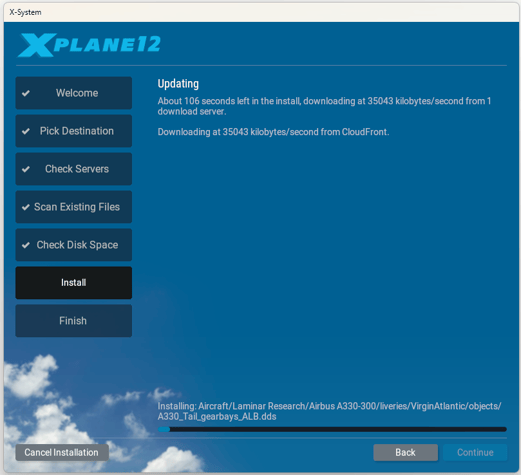
- When the installer completes, you can quit the installer. X-Plane 12 is now reverted to version 12.3.3.
I Receive A Warning From X-Plane Regarding a Joystick Configuration
After rolling back your X-Plane update you may receive a warning from X-Plane on the next launch regarding a joystick button configuration for a Virpil CDT-VMAX Throttle Quadrant.
The offending file is an undeleted leftover from the X-Plane 12.4.1 update. This can be easily resolved by removing the offending file:
- Navigate to the following folder: C:\X-Plane 12\Resources\joystick configs\
- Delete the following file: Virpil CDT-VMAX Throttle Quadrant - Windows.joy
With the file deleted you will no longer receive the Joystick Configuration warning when starting X-Plane 12.
What Do I Do If X-Plane 12 Asks to Update Again?
If you are prompted by X-Plane 12 to update the simulator again, simply click the ignore button on the dialog:
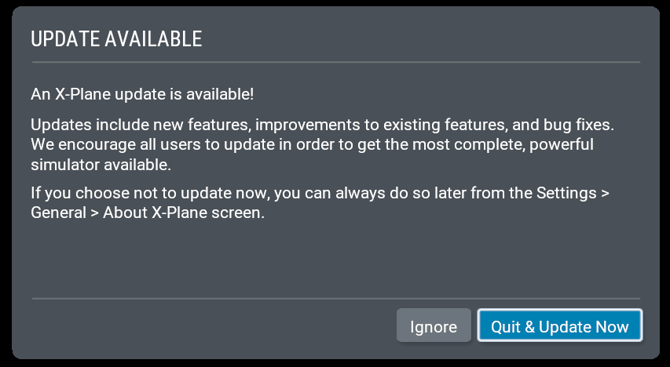
This will need to be done until all aircraft and avionics packaged sold by RealSimGear are updated to the latest version of X-Plane 12.
Note: If you have an FAA Approved (BATD or AATD) and you are prompted update X-Plane 12, please reach out to RealSimGear Signature Support at the email address listed in your binder and a member of our support team can disable the update notifications. This option is only available on "Pro" versions of X-Plane.